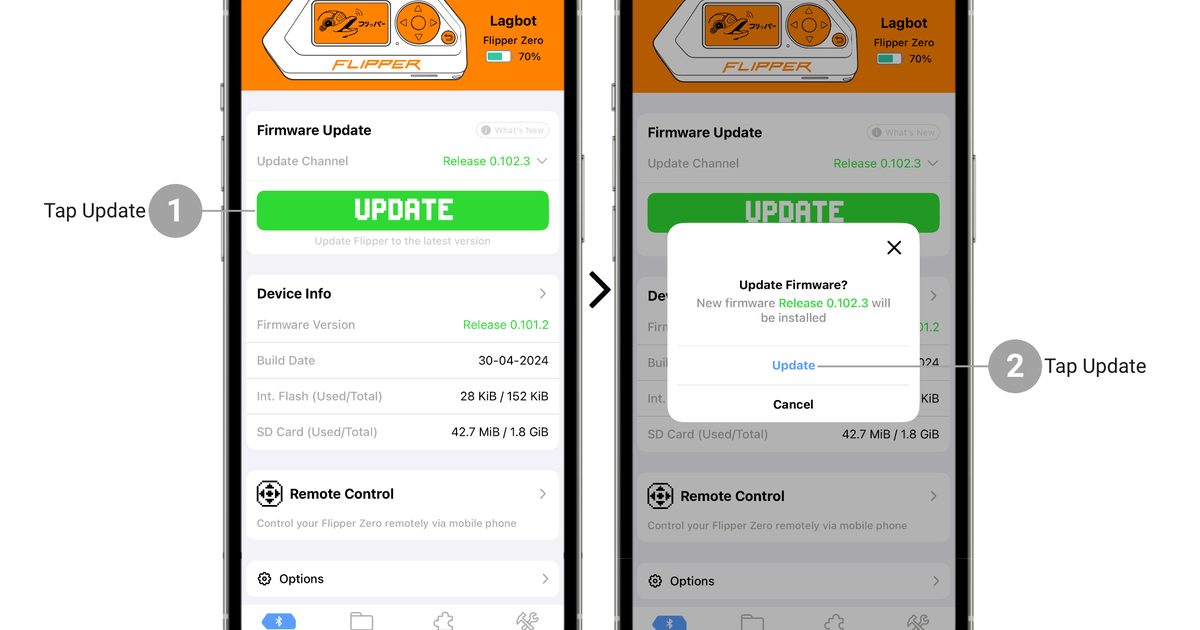
Header image: Official Flipper documentation photo of a mobile firmware update. Image: Flipper Devices. Source: docs.flipper.net. Momentum updates use Momentum’s own methods, described below.
Disclosure: some links below are Amazon affiliate links (tag cao04-20). Costs you nothing; the picks are the same either way. The Flipper.net links are plain links.
Note: Research was conducted on November 10, 2026 (America/New_York). The latest mainline pin can move; re-check GitHub releases and the Web Updater before every flash.
Part 10 of the Flipper Zero Momentum Beginner Guidebook, and the close of the series. Previous: Part 9, FindMy and Bluetooth tools. There is no Part 11 in this guidebook. Possible later pieces (GPIO/ESP, JavaScript, external modules) may show up someday; they are not written here.
This is the maintenance part: how apps show up, how to back up for real, how to update mainline safely, and what to do when a connection or a flash goes wrong. Custom firmware still does not increase your legal rights.
Who this bites
This is for anyone who now has a Flipper on Momentum and wants a boring, repeatable backup and update habit. A spare SanDisk 32GB Ultra microSDHC card is useful if you want a second card to copy onto or to swap in, and a data-capable Anker USB-A to USB-C cable helps when you copy files with qFlipper.
If you stayed on Official Firmware after Part 1, the official qFlipper RELEASE channel and the mobile app from Part 2 are still your update path. The backup rule is the same: copy the SD files.
Legal and ethics
This guidebook is for learning on hardware and tags you own, or have written authorization to test. Transmitting on restricted frequencies, cloning access credentials, interfering with other people’s devices, or using BadUSB / Bad KB against systems you do not own can be illegal. Custom firmware increases capability; it does not increase your legal rights. When in doubt, don’t transmit and don’t emulate. Local laws vary. A firmware update does not change any of that.
How apps show up on Momentum (and why app-count tables go stale)
Momentum’s official comparison table, dated April 2025, lists preinstalled external apps as Official Firmware 3, RogueMaster 421, Unleashed 226 with the [e] pack, and Momentum 183. Those counts go stale. Do not treat them as current as of November 2026. Re-check https://momentum-fw.dev/ if app count is part of your decision.
This series will not invent a “starter apps” list of unofficial names. The useful categories are the ones you already met: Sub-GHz (and, since mntm-011, the dedicated Weather, POCSAG, and TPMS apps under Apps → Sub-GHz), NFC, RFID, Infrared, Bad USB, Settings, Momentum Settings, Archive / file browser, and GPIO apps for optional hardware.
File search and disk image management appear as Momentum-yes features on the official table. This sheet does not name their menu paths, so this article will not invent them. If you see those tools on the device, use the on-screen labels.
Starter categories worth opening first
Open the apps you already practiced, on owned gear only:
- Sub-GHz in listen-only mode on a remote you own, plus the dedicated Apps → Sub-GHz tools if you actually need weather, POCSAG, or TPMS.
- NFC and RFID on tags you own.
- Infrared on a remote you own.
- Bad USB only with a harmless payload on your own PC.
- Momentum Settings, for the interface posture from Part 4.
- The file browser / Archive, so you can find the files you saved.
That is enough of a smoke test after an update. You do not need to open every preinstalled app.
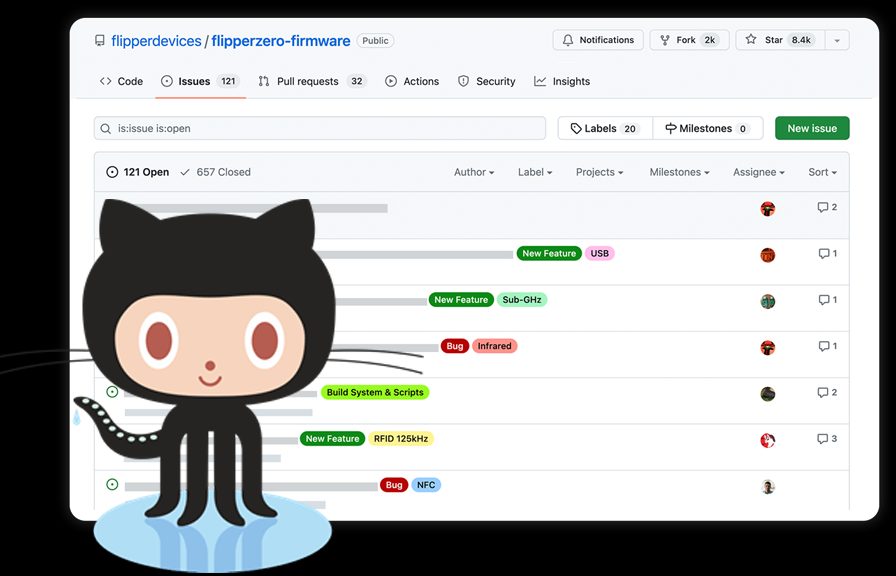
Image: Official Flipper downloads artwork for firmware sources. Image: Flipper Devices. Source: flipper.net/pages/downloads. For Momentum packages, use the Next-Flip GitHub release page, not the official RELEASE channel.
Backup checklist (copy the SD files)
Data lives on the SD card. Firmware installs do not by themselves wipe user files, but back up first.
qFlipper Advanced Controls Backup/Restore is not a full backup of saved files. It only backs up settings in the hidden .int folder. A real backup, per the Momentum install wiki, is one of:
- Copy the folders you care about with qFlipper’s File manager.
- Unmount the card on the device (Main Menu → Settings → Storage → Unmount SD Card), then pull the card and copy the files to a computer.
- Image the FatFs partition. The wiki does not mandate a specific tool, and this series will not invent one as official.
After you format an SD card, official docs say to run a firmware update again so databases are reinstalled on the card.
Keep the card inserted for firmware updates. Official docs require a card in the slot during an update because databases are copied to it. Do not power off and pull the card “to be safe” before an update. That is the wrong move, and it is the opposite of the official guidance.
A second branded card is a convenient place to keep a copy, not a requirement. If you do swap cards, format or update as official docs require so the new card has the databases.
Image: Official Flipper microSD card product photo. Image: Flipper Devices. Source: flipper.net.
Updating Momentum safely (mainline vs dev)
Prefer mainline over dev unless you understand the risk. As of November 10, 2026, the latest mainline is still mntm-012 (GitHub release December 31, 2025; Web Updater label mntm-012 30.12.25). No newer numbered mainline was published as of the research date. A dev/ folder on the update server was dated August 18, 2026, so dev builds may be newer. Re-check https://momentum-fw.dev/update/ and GitHub releases before every flash. This series does not claim the device will notify you of updates, and it does not invent a special on-device label for dev builds beyond what the updater itself shows.
The four update methods are the same as Part 3:
- Web Updater (recommended): https://momentum-fw.dev/update in a browser with Web Serial. Close qFlipper and Flipper Lab first. Do not disconnect mid-update.
- Flipper Lab / official mobile app, from the release’s Lab/App link, with the official app already paired if you are on a phone.
- qFlipper Install from file with the current mainline
.tgz. This is not the official RELEASE channel. - Manual
.ziponSD/update, then run the on-device file namedUpdate.
After the update, confirm the on-device version / About information matches the release you installed. This series will not invent an exact Settings → About path.
If you want Official Firmware again, use qFlipper’s official channels from Part 2, and keep a copy of your SD files.
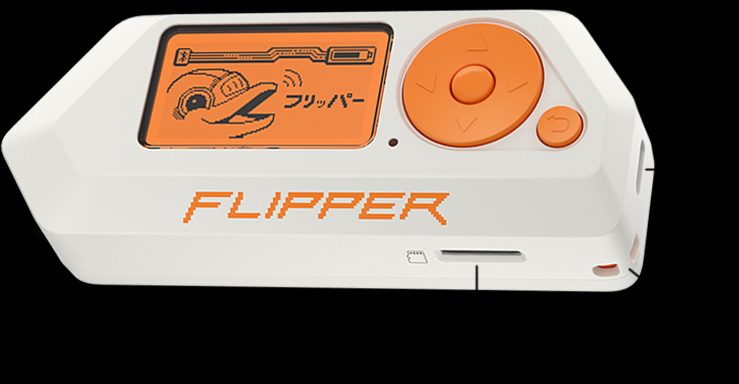
Image: Official Flipper Zero product render. Image: Flipper Devices. Source: flipperzero.one.
Common failures
RPC / connection locked or blocked. Close qFlipper, Lab, and any other serial users. Unlock the device. After Momentum is installed, Allow USB RPC While Locked in MNTM → Interface → Lockscreen can block the Web Updater if the Flipper is locked and the toggle is off. An Unsupported Browser message means the browser has no Web Serial. Do not invent a settings/.rpc file to edit, and do not invent a flags walkthrough.
SD not recognized, or you just formatted it. Use the official SD card page from Part 2: try a branded card, format on the device if needed, then run a firmware update so databases are reinstalled. Unmount before you pull the card.
Partial update / failed flash. Official qFlipper and Momentum install pages say not to disconnect mid-update. If the device will not power on, official First Start points at Firmware recovery — follow that page, and do not invent recovery steps here. A fully drained battery should power on when plugged in; LEFT + BACK for five seconds is the official reboot if the UI freezes.
Crash messages / source paths. The official comparison table still lists “Improved Error Messages (Showing source path)” for Momentum, but the mntm-012 release notes say FURI_TRACE was disabled due to flash space, so furi_check failed crashes will not show the file path “for now.” Do not treat that table row as a current mntm-012 guarantee.
Series wrap: 30-day practice plan on owned gear
Keep it boring and legal, and keep it on gear you own:
- Week 1: learn the stock-then-Momentum menus, set MNTM to the beginner posture from Part 4, and install one Asset Pack.
- Week 2: Sub-GHz listen-only on a remote you own, and read an NFC or RFID tag you own.
- Week 3: learn an IR remote you own, and run a harmless BadUSB demo on your own PC.
- Week 4: make a real SD-file backup, re-check for a new mainline, and update only if you have the backup and a reason to move.
No third-party systems. No spam, no spoofing in public, no rolling-code how-tos.
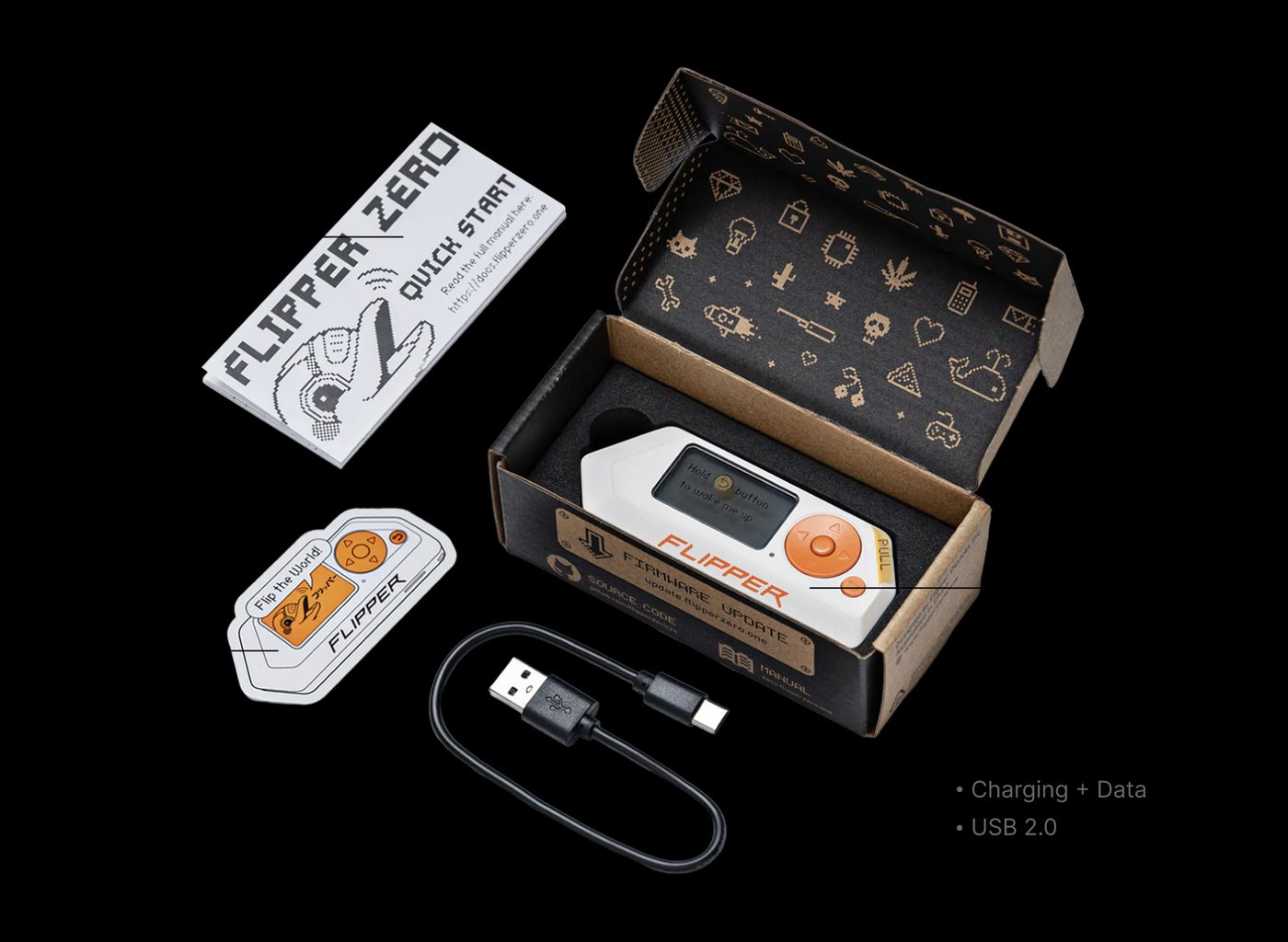
Image: Official Flipper Zero unboxing / contents photo. Image: Flipper Devices. Source: flipper.net. The official box still does not include a microSD card.
Series index
- Why Momentum for beginners
- Setup: SD card, charge, first boot
- Install Momentum
- Momentum Settings (MNTM)
- Asset Packs
- Sub-GHz basics
- NFC and RFID
- Infrared and BadUSB
- FindMy Flipper and Bluetooth tools
- Apps, backups, updates, troubleshooting
Checklist
- Copy the SD files (or image the FatFs partition). Do not rely on qFlipper Backup/Restore alone.
- Keep the card inserted for any firmware update.
- Close qFlipper, Lab, and the official mobile app before using the Web Updater.
- Re-check the current mainline. As of November 10, 2026, that is mntm-012. Prefer mainline over dev.
- Use one official Momentum method, preferably the Web Updater. Do not disconnect mid-update.
- Confirm the on-device version string matches the release you installed.
- If the updater cannot connect while the device is locked, unlock it and check Allow USB RPC While Locked.
- If the UI freezes, hold LEFT + BACK for five seconds. If the device will not power on, follow official Firmware recovery.
- After a format, update firmware again so databases return to the card.
- Stick to the 30-day plan on owned gear.
FAQ
Should I remove the SD card before an update?
No. Official docs want the card inserted so databases can be written to it. Unmount and remove the card only when you are copying files, not as a prelude to a flash.
Is qFlipper Backup enough?
No. It only backs up hidden .int settings. Copy the SD files.
How will I know a new mainline is out?
Re-check the Web Updater and GitHub releases. This series does not claim the Flipper will notify you.
The Web Updater says Flipper Locked.
Unlock the device. If Momentum is already installed, also check Allow USB RPC While Locked in MNTM → Interface → Lockscreen.
My crash log has no file path. Is the table wrong?
The table may be stale. mntm-012 disabled FURI_TRACE to save flash, so those paths may not appear “for now.”
The bottom line
Copy the SD files, keep the card in the slot, update mainline with one official method, and confirm the version string. When something fails, close the other serial tools, follow official recovery, and do not invent hidden settings files to edit. That is the whole maintenance habit, and it is the end of this beginner guidebook.
Previous: Part 9 – FindMy Flipper and Bluetooth Tools on Momentum Next: none
Sources
9 refs- https://momentum-fw.dev/momentum-fw.dev
- https://momentum-fw.dev/wiki/Installationmomentum-fw.dev
- https://momentum-fw.dev/update/momentum-fw.dev
- https://docs.flipper.net/zero/basics/sd-carddocs.flipper.net
- https://docs.flipper.net/zero/basics/first-startdocs.flipper.net
- https://docs.flipper.net/zero/qflipperdocs.flipper.net
- https://github.com/Next-Flip/Momentum-Firmware/releases/tag/mntm-012github.com
- https://github.com/Next-Flip/Momentum-Firmware/releases/tag/mntm-011github.com
- https://up.momentum-fw.dev/builds/firmware/up.momentum-fw.dev
comments
loading comments…
No comments yet. Start the thread.