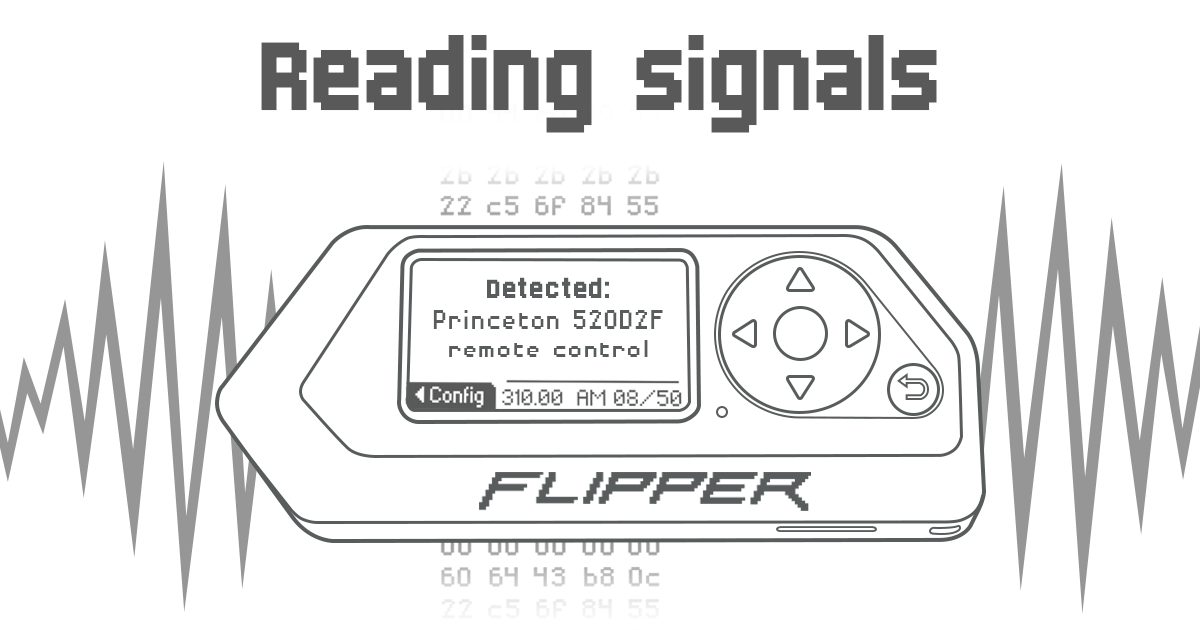
Header image: Official Flipper documentation artwork for reading Sub-GHz signals. Image: Flipper Devices. Source: docs.flipper.net.
Disclosure: some links below are Amazon affiliate links (tag cao04-20). Costs you nothing; the picks are the same either way. The Flipper.net links are plain links.
Note: Research was conducted on November 10, 2026 (America/New_York). Firmware versions and protocol lists can change; re-check official docs and the current Momentum release notes before you transmit anything.
Part 6 of the Flipper Zero Momentum Beginner Guidebook. Previous: Part 5, Asset Packs. Next: Part 7, NFC and RFID. This is the first radio part. The legal limits come first, on purpose.
As of November 10, 2026, this series still pins mainline mntm-012. Re-check before you flash or update.
Who this bites
This is for people who want to understand the Sub-GHz app on a Flipper running Momentum, starting with listen-only work on remotes they own. If you do not have a legal target — a remote and receiver you own, or written authorization — this part is a reading guide, not a lab session. Stay in Read and Frequency Analyzer. Do not transmit.
Saved captures live on the microSD card. A SanDisk 32GB Ultra microSDHC card is plenty, and a data-capable Anker USB-A to USB-C cable helps when you copy files with qFlipper.
Legal and ethics note
This guidebook is for learning on hardware and tags you own, or have written authorization to test. Transmitting on restricted frequencies, cloning access credentials, interfering with other people’s devices, or using BadUSB / Bad KB against systems you do not own can be illegal. Custom firmware increases capability; it does not increase your legal rights. When in doubt, don’t transmit and don’t emulate. There is no “bypass building access” framing in this series, and there is no “open my apartment gate from the parking lot” framing unless it is clearly your own system and still stays conceptual. No jamming. No attacking vehicles. Local laws vary.
Official docs say Flipper can receive and transmit in 300–928 MHz with the built-in CC1101 and antenna, with an official max range of 50 meters. The hardware bands in that same official Sub-GHz doc are 300–348 MHz, 387–464 MHz, and 779–928 MHz. The product page lists 315 / 433 / 868 / 915 MHz as the CC1101 bands. Both wordings are official; they are not identical. Do not pretend they are.
The official Sub-GHz app includes Region Information, which lists frequencies allowed for transmission in your region. Respect it. Momentum Settings (Part 4) includes Bypass Region Lock and Extend Freq Bands. Those toggles exist. This part will not give steps or encouragement to transmit outside what is legal where you live.
Official Firmware can support some rolling-code receivers, but it cannot send captured rolling-code signals. Custom firmwares can, at your own risk, per Momentum’s comparison table footnote 1. This series will not treat rolling-code replay as a how-to.
Sub-GHz mental model: listen vs transmit
Main Menu → Sub-GHz is the official app. The official mental model is:
- Read decodes known protocols. If the protocol is static, Flipper can save the signal.
- Read RAW saves raw signals, including unknown protocols.
- Saved is the list where you can emulate, rename, or manage those files.
- Add Manually can create a virtual remote. This part stays at that high level. It will not publish protocol recipes.
- Frequency Analyzer finds a strong nearby signal so you can set a frequency on purpose instead of guessing.
- Radio Settings can switch between the internal antenna and an external CC1101 if one is connected. External modules are an optional pointer only. This is not a wiring guide.
Reading or analyzing is not the same as transmitting. Skip transmit unless you own the receiver or have written authorization. “I captured it” is not permission.
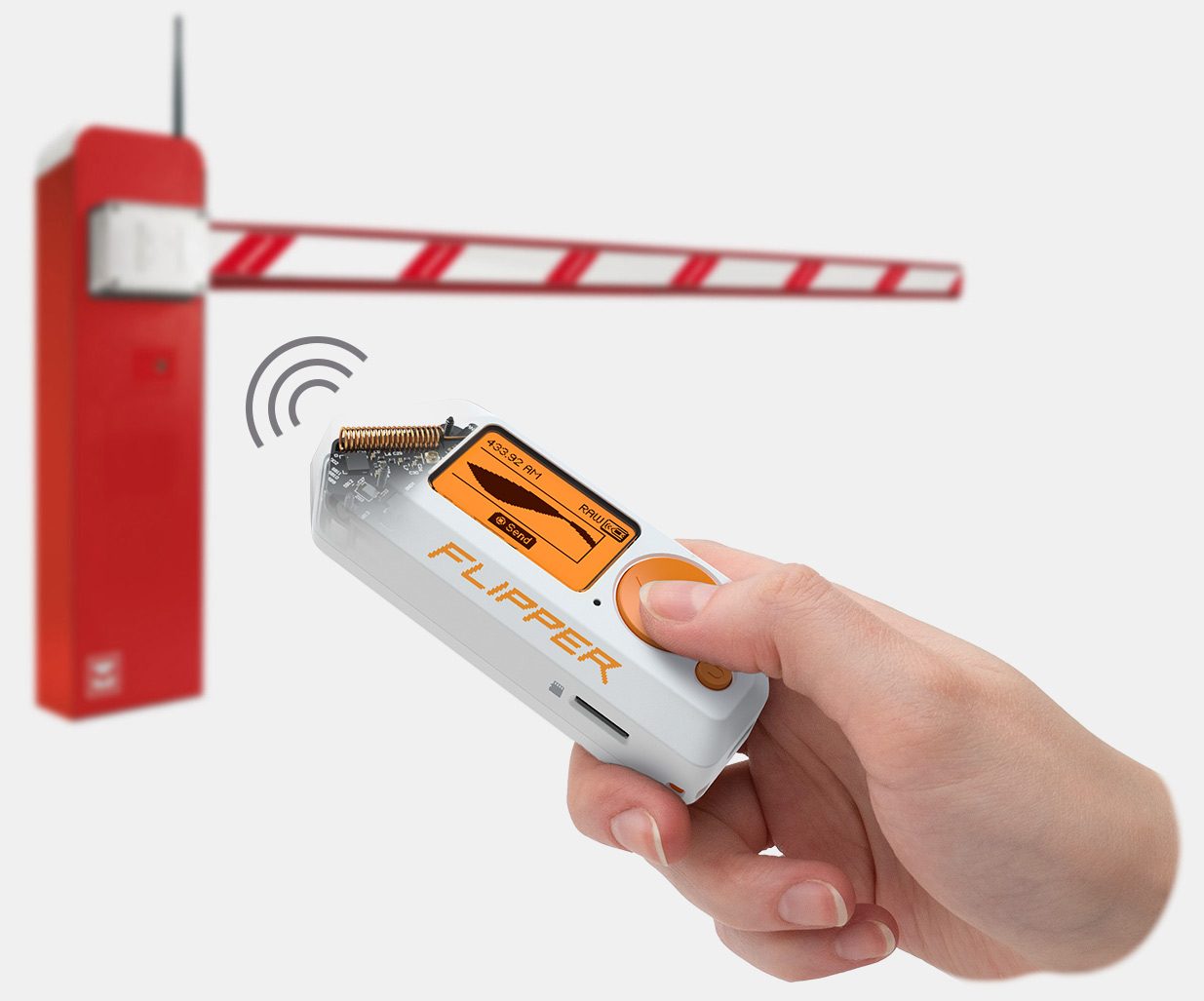
Image: Official Flipper Zero Sub-GHz product photo. Image: Flipper Devices. Source: flipperzero.one. This series only discusses remotes and receivers you own or have written authorization to test.
Frequency Analyzer walkthrough
Official docs: the analyzer scans signal strength across frequencies in the Configuration menu and displays the frequency with the highest RSSI above -90 dBm. Place the remote very close to the left of the Flipper, then press and hold the remote button. LEFT/RIGHT opens a second screen of up to 15 measured frequencies; OK sorts them. Official warning: results can be approximate, and most signals are in the 315, 433, and 868 MHz bands.
Hopping mode, in the Read configuration, switches among frequencies and, when RSSI exceeds -90 dBm, stays for one second then resumes. Switching can miss signals. A fixed frequency from the Analyzer works better.
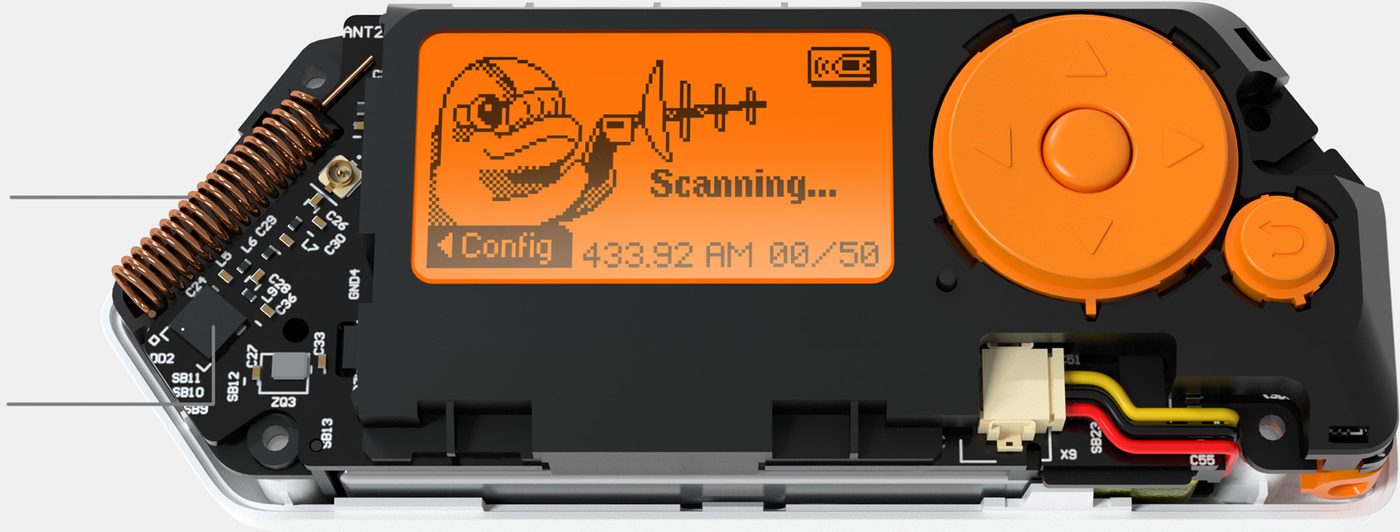
Image: Official Flipper Zero Sub-GHz product photo. Image: Flipper Devices. Source: flipperzero.one.
Reading and saving a signal you are allowed to test
On a remote you own, use the Analyzer to find a frequency, set that frequency in Read (or Read RAW if the protocol is unknown), capture the button press, and save it if the app offers a save. Find it later under Saved. Emulate only back to your own receiver, and only if the protocol is static and you are allowed to transmit on that frequency in your region.
If the app will not let you save or send a captured rolling-code signal on Official Firmware, that is expected. If Momentum offers to send one, that is the “at your own risk” path this series will not walk you through.
What rolling-code support means
Rolling-code systems change the valid code after each use, which is why a captured code often will not work twice. Official Firmware may receive some of those signals and still refuse to retransmit them. Custom firmware can lift that limit, at your own risk. That is a capability statement, not a tutorial. This series will not give instructions aimed at gates, cars, or buildings you do not own.
Momentum extras at a high level
Momentum’s homepage advertises many Sub-GHz protocols, GPS SubDriving (saving coordinates with a capture — a yes on Momentum and RogueMaster, a no on Official Firmware and Unleashed, per the official table), and some rolling-code support. Frequency lists and hopper frequencies can be configured in MNTM → Protocols (Part 4). This part will not publish custom frequency lists.
One easy mistake: the homepage still advertises “many protocols integrated into SubGHz (weather, pocsag, tpms, …).” The mntm-011 changelog (July 4, 2025) removed Weather Station, POCSAG, and TPMS from the main Sub-GHz app because the CPU could not keep up. On current mainline they live as dedicated apps under Apps → Sub-GHz. Do not expect them inside the main Read app.
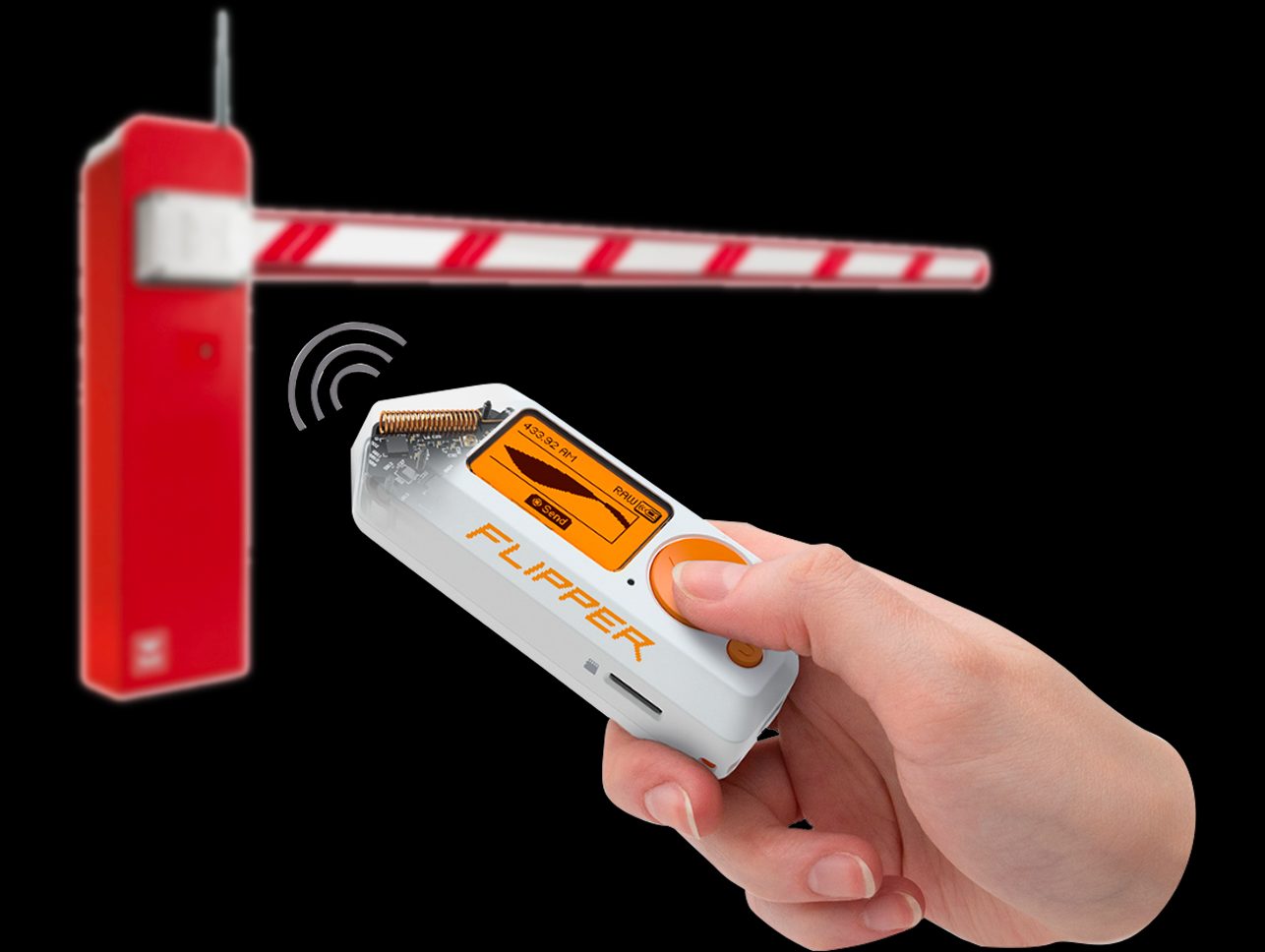
Image: Official Flipper Zero product photo. Image: Flipper Devices. Source: flipper.net. Use this tool only on systems you own or have written authorization to test.
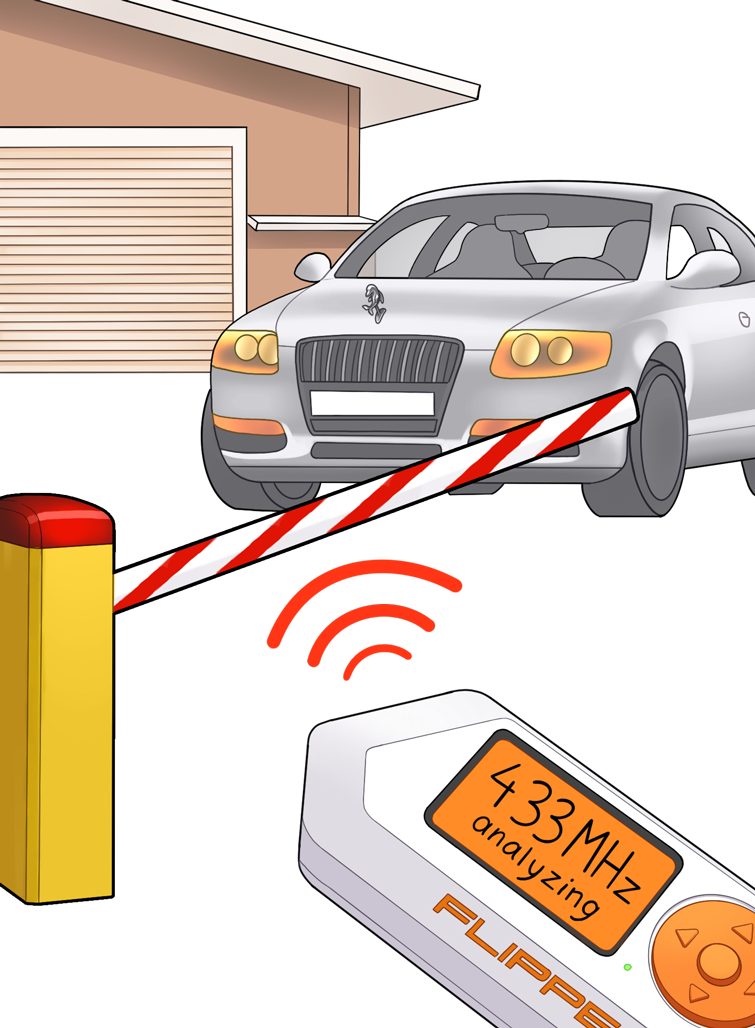
Image: Official Flipper Sub-GHz documentation illustration. Image: Flipper Devices. Source: docs.flipper.net.
External CC1101 mention (optional advanced pointer)
Radio Settings can address an external CC1101 if one is connected. That is an optional, advanced path. This beginner part will not wire a module or claim extra range numbers beyond the official 50-meter figure for the built-in antenna.
Skip-if / when not to transmit
- You do not own the receiver and do not have written authorization.
- You do not know whether the frequency is legal to transmit on in your region.
- The signal is rolling-code, and you were about to treat “custom firmware can send it” as a how-to.
- You wanted a jamming, vehicle, or building-access walkthrough. That is not this series.
If any of those apply, stay in Read and the Analyzer, or close the app.
Checklist
- Confirm the target is yours, or that you have written authorization.
- Check Region Information before any transmit.
- Leave Bypass Region Lock and Extend Freq Bands alone unless you know the legal result.
- Use Frequency Analyzer with the remote close to the left side of the Flipper.
- Prefer a fixed frequency over hopping when you are trying to catch one remote.
- Use Read for known static protocols, Read RAW for unknown ones.
- Save to the SD card; copy files off the card if the capture matters.
- Look for Weather, POCSAG, and TPMS under Apps → Sub-GHz, not in the main Read app.
- Do not follow a rolling-code replay how-to. This series does not provide one.
- Continue to Part 7 for NFC and RFID, still on tags you own.
FAQ
Is listening legal?
Listening is not the same as transmitting, but local rules still vary, and capturing or replaying other people’s systems can be illegal. This series only practices on hardware you own or have authorization to test.
Why did I not find weather or TPMS in the main Sub-GHz app?
On current mainline, those protocols moved to dedicated apps under Apps → Sub-GHz in mntm-011. The homepage wording is behind that change.
What is SubDriving?
It is Momentum’s option to save GPS coordinates with a Sub-GHz capture. Official Firmware and Unleashed do not have it, per the comparison table. This part does not teach a drive-by capture workflow.
Does Momentum increase transmit power?
This series does not have an official source for a power-output change, so it will not claim one. Treat the official 50-meter figure as the documented built-in range, and do not assume custom firmware made the radio louder.
The bottom line
Start with the Analyzer and Read, on remotes you own, and treat transmit as a separate, legally constrained step. Momentum adds options, including some that Official Firmware refuses. Those options are not a how-to, and they do not change the law.
Previous: Part 5 – Flipper Zero Asset Packs on Momentum: Install Themes Without Recompiling Next: Part 7 – Flipper Zero NFC and RFID Beginner Guide (Momentum)
Sources
7 refs- https://docs.flipper.net/zero/sub-ghzdocs.flipper.net
- https://docs.flipper.net/zero/sub-ghz/readdocs.flipper.net
- https://momentum-fw.dev/momentum-fw.dev
- https://momentum-fw.dev/wiki/Protocolsmomentum-fw.dev
- https://github.com/Next-Flip/Momentum-Firmware/releases/tag/mntm-011github.com
- https://github.com/Next-Flip/Momentum-Firmware/releases/tag/mntm-012github.com
- https://flipperzero.one/flipperzero.one
comments
loading comments…
No comments yet. Start the thread.