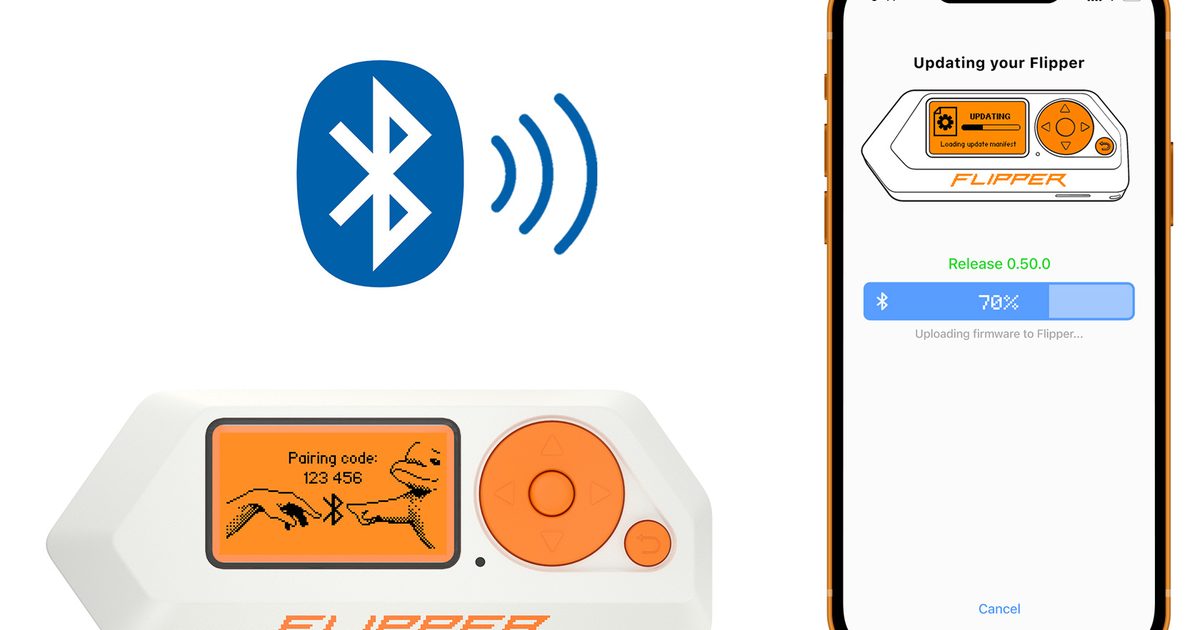
Header image: Official Flipper Zero Bluetooth product photo. Image: Flipper Devices. Source: flipperzero.one.
Disclosure: some links below are Amazon affiliate links (tag cao04-20). Costs you nothing; the picks are the same either way. The Flipper.net links are plain links.
Note: Research was conducted on November 10, 2026 (America/New_York). Find My / network-locator steps live outside this series and change often; do not treat this part as an Apple or Google setup guide.
Part 9 of the Flipper Zero Momentum Beginner Guidebook. Previous: Part 8, Infrared and BadUSB. Next: Part 10, backups, updates, and troubleshooting. This is the Bluetooth ethics part. It will tell you what exists, and it will refuse to teach the prank features.
As of November 10, 2026, this series still pins mainline mntm-012.
Who this bites
This is for people who want to know what “FindMy Flipper” means on Momentum, and what they should not do with the rest of the Bluetooth suite. If you carry the Flipper, the official Flipper Zero silicone case and Flipper Zero screen protector (3-pack) are sold on Amazon by Flipper Devices Store. Those accessories do not change the ethics.
If you came here for BLE spam instructions, popups on strangers’ phones, or a spoofed identity you can use in public, stop here. This series will not teach that.
Legal and ethics note
This guidebook is for learning on hardware and tags you own, or have written authorization to test. Transmitting on restricted frequencies, cloning access credentials, interfering with other people’s devices, or using BadUSB / Bad KB against systems you do not own can be illegal. Custom firmware increases capability; it does not increase your legal rights. When in doubt, don’t transmit and don’t emulate. Local laws vary.
Additional Bluetooth limits for this part:
- No harassment and no disrupting public spaces. This guide will not teach BLE spam, prank popups, or flooding strangers’ phones.
- Spoofing name / MAC / serial (MNTM → Misc, covered in Part 4) is lab-only on devices you own. Do not use it to impersonate people or evade accountability.
- Official product Bluetooth is BLE 5.4. Official mobile apps can update via BLE, remotely control the device, and manage files. That official use is still on your Flipper.
FindMy Flipper — auto-enable on Momentum
Momentum’s official comparison table, footnote 2, is the fact this part will actually stand on: Official Firmware needs manual setup for FindMy Flipper; custom firmwares including Momentum enable it automatically at startup.
The Momentum homepage lists “FindMy, Bad KB & BLE Spam” as a Bluetooth tool suite. That is marketing, not a setup manual.
This series does not include a step-by-step Find My account or app setup from Apple or Google. It will not invent pairing steps, app names, or a guarantee that the Flipper “will appear in Find My.” Custom firmware turns the feature on at startup, per Momentum’s table. Official firmware needs manual setup. For everything after that, follow current official or FindMy Flipper documentation and re-check it, because those steps live outside this fact sheet and they change.
This part also will not promise a tracking range or a battery-impact number. Those figures are not in the sourced sheet, so they will not appear here as facts.
Conceptually, a Find My-style feature is BLE advertising that a locator network can use to help you find a device you already own. That is a reasonable reason to want it on a pocket tool you might misplace. It is not a reason to track anyone else, and it is not a reason to assume the Flipper is now a drop-in AirTag with a published range. If you enable or accept the feature, treat it as a way to look for your own Flipper, and keep the rest of the Bluetooth suite on a short leash.
If you do not want a device that advertises itself over BLE at startup, that is a real preference, but this part does not document a disable path. Do not invent a toggle. If you need that answer, check the current Momentum documentation or the app’s own screens, and do not assume a Part 1 or Part 4 setting name.
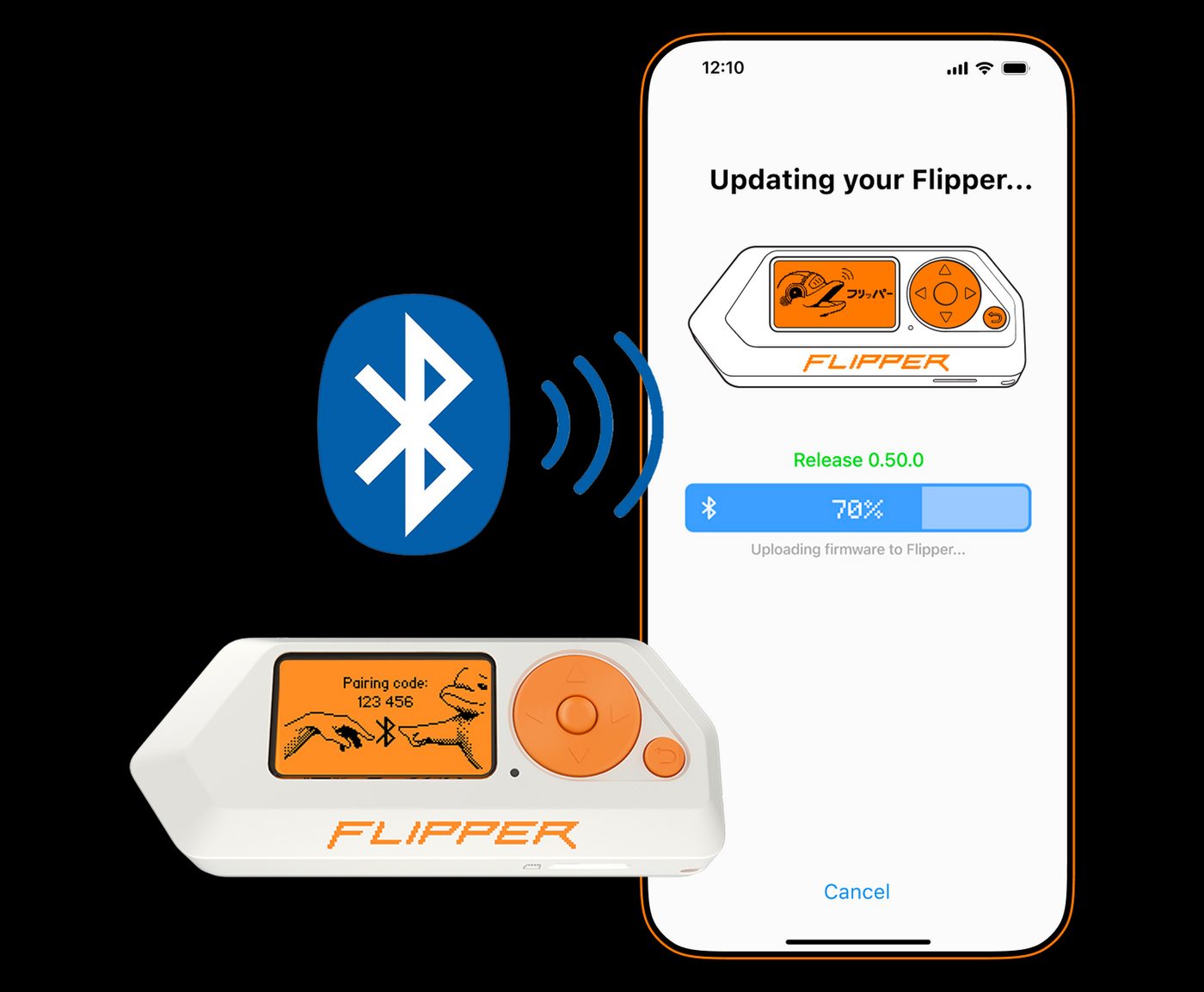
Image: Official Flipper Mobile App artwork. Image: Flipper Devices. Source: flipper.net. The official app uses Bluetooth for update, control, and file management of your own Flipper.
Helpful BLE tools (high level)
The official mobile app’s BLE path is the one this series already covered in Part 2: enable Bluetooth on the Flipper, open the official app, enter the pairing code shown on the device, and use it to update, control, or manage files. Official docs have said a mobile firmware update may take around 10 minutes.
Official BadUSB docs also describe a BLE HID / wireless BadUSB path (Part 8). Momentum includes extra Bad KB options and a broader Bluetooth tool suite. This part will mention remotes only at a conceptual level: the Flipper can act as a Bluetooth remote or HID for a machine you own. It will not invent menu labels for a BT remote app unless a source in this sheet names the exact path. The fact sheet does not name that path, so this article will not either.
If you connect a Bluetooth keyboard or remote session, close qFlipper first when official docs say to, and stay on hardware you own.
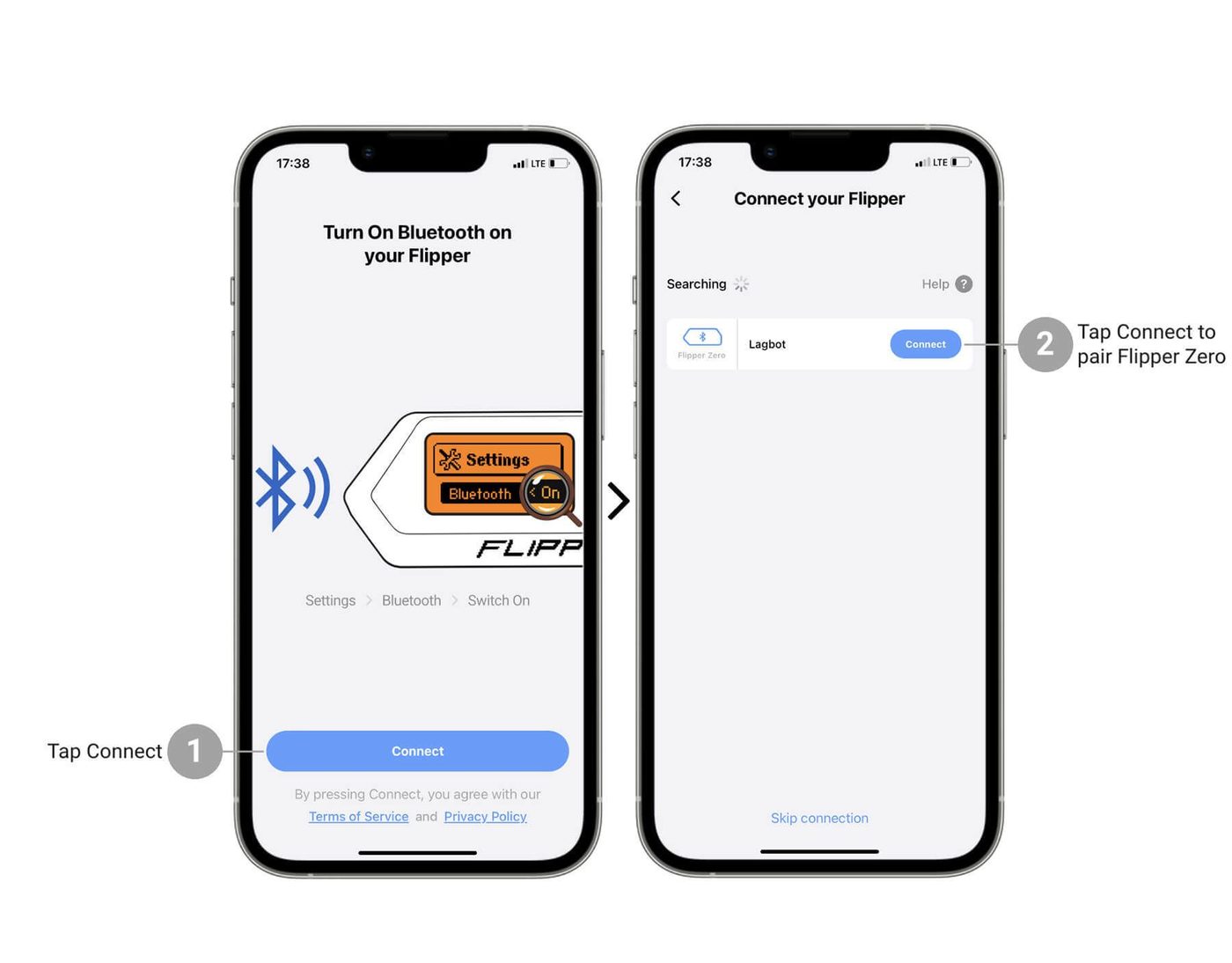
Image: Official Flipper Mobile App Bluetooth pairing. Image: Flipper Devices. Source: docs.flipper.net.
BLE spam and similar — what it is, why we won’t teach pranks
BLE spam exists on Momentum, Unleashed, and RogueMaster. It does not exist on Official Firmware, per the comparison table. The Momentum homepage mentions “prank others nearby.” This series explicitly will not teach that.
At a conceptual level, broadcast spam is unsolicited BLE advertisements that can trigger OS notifications on nearby phones. Using it on strangers can be a jerk move, and it may be illegal as interference, harassment, or a violation of local wireless rules. That is the whole discussion. There are no configuration steps here, no payload types, and no “how to make iPhones pop up.”
If a later menu on your device still offers the feature, leaving it unopened is the beginner posture this guidebook recommends. Do not test ‘whether it still works’ in a cafe, a classroom, a train, or an office just to see phones light up. A lab is a room and equipment you control, not a crowded public space that did not opt in. If you cannot explain the test to the people standing next to you, it is not a lab test. Close the app and move on to a use you can stand behind.
Spoofing name / MAC / serial — lab-only
MNTM → Misc can change the Flipper Name (empty means the real name). The wiki says this also affects BLE name and MAC, plus USB name and serial number. That is useful in a lab when you want to test how your own computer or your own app displays a device. It is not a disguise for public use, and it is not a way to evade accountability.
Leave the name empty unless you have a lab reason. Part 4 already said this; it is worth repeating next to the Bluetooth tools.
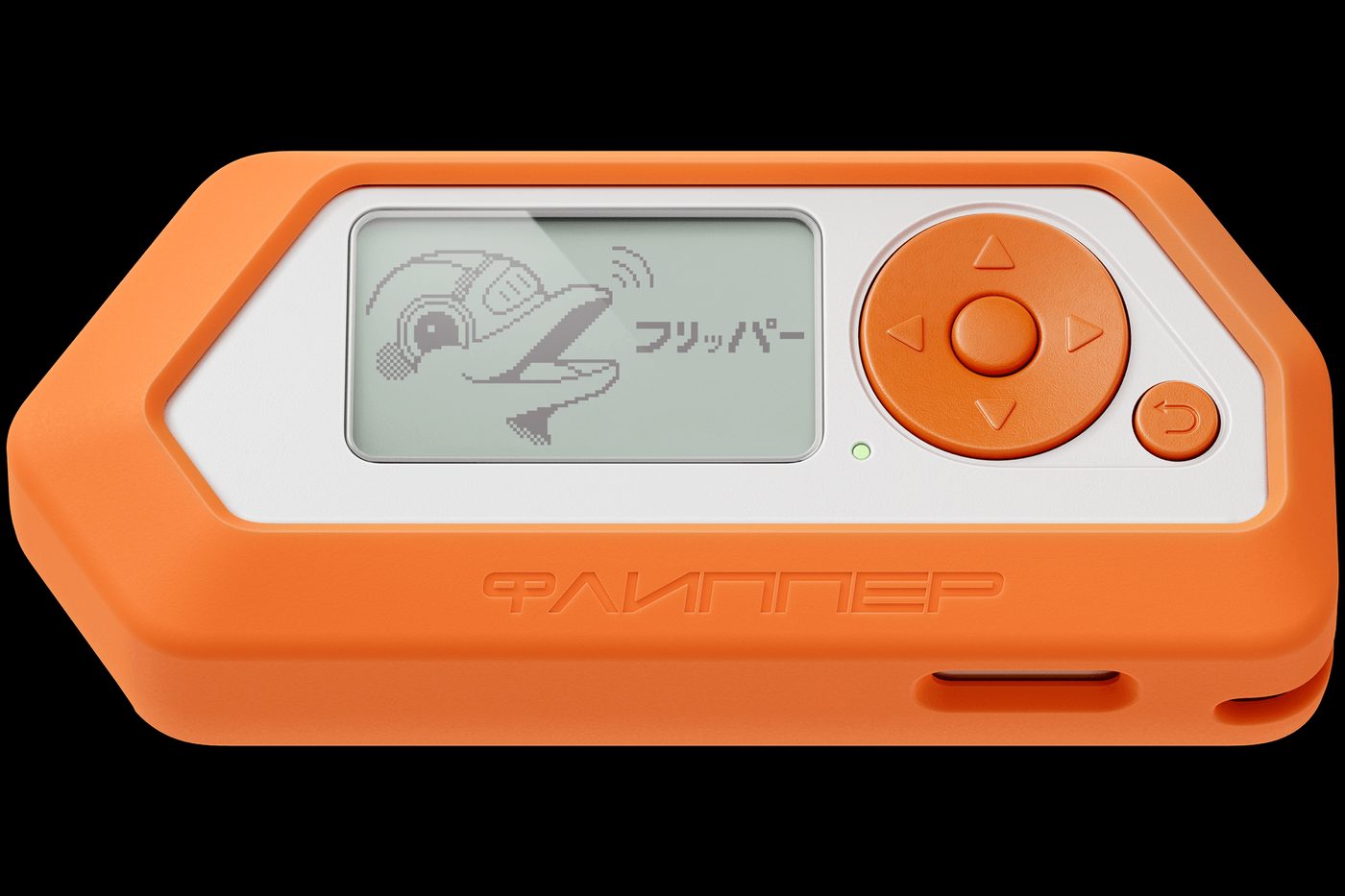
Image: Official Flipper Zero silicone case. Image: Flipper Devices. Source: flipper.net.
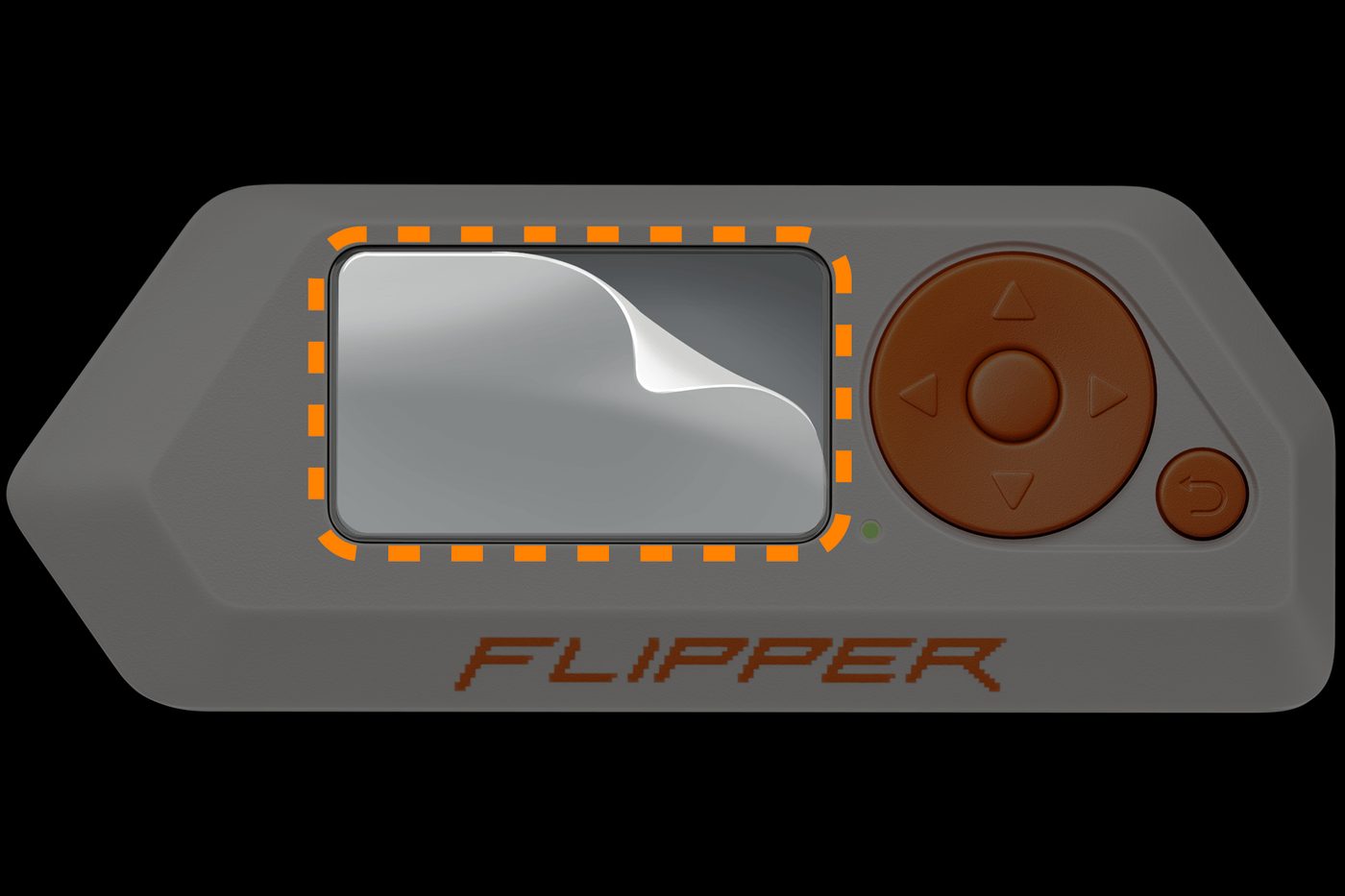
Image: Official Flipper Zero screen protector. Image: Flipper Devices. Source: flipper.net.
Skip-if
- You wanted a Find My setup walkthrough for Apple or Google. That documentation lives elsewhere, and this series will not invent it.
- You wanted BLE spam, prank popups, or a public tracking recipe.
- You wanted to spoof a name or MAC in the wild.
- You do not want FindMy advertising at startup and were hoping this part would document a disable path. It will not guess one.
If the official, vendor-supported Bluetooth path (mobile app, official firmware) is all you want, stay on Official Firmware (Part 1) and use the official app from Part 2.
Checklist
- Understand that Momentum enables FindMy Flipper automatically at startup, per the official table.
- Do not expect this article to pair the Flipper with Apple or Google for you.
- Use the official mobile app’s BLE features only with your own Flipper.
- Use BLE HID / BadUSB only on a computer you own (Part 8).
- Do not open BLE spam to prank strangers or crowd a public space.
- Leave name / MAC / serial spoofing empty unless you have a lab reason.
- Continue to Part 10 for backups, updates, and a 30-day practice plan on owned gear.
FAQ
Does Momentum turn FindMy on by itself?
Yes, according to Momentum’s comparison table footnote 2: custom firmwares enable it automatically at startup. Official Firmware needs manual setup.
How do I disable it?
This part does not document a disable path and will not invent one. Check current Momentum documentation or the on-device screens.
Will my Flipper show up in Apple Find My or Google’s network?
This series will not guarantee that. Follow current official or FindMy Flipper documentation and re-check.
Is BLE spam illegal?
It can be, depending on where you are and how you use it, and it is at least an unsolicited interference with other people’s devices. This series will not teach it.
Does a case or screen protector change Bluetooth behavior?
This series has no sourced answer for that, so it will not invent one. Those accessories are for carry protection, not for radio performance claims.
The bottom line
Momentum turns FindMy Flipper on at startup. That is the documented difference from Official Firmware. Use official Bluetooth tools on your own device, and leave spam and spoofing alone in public. Part 10 is the maintenance close: backups, updates, and a boring practice plan.
Previous: Part 8 – Flipper Zero Infrared and BadUSB on Momentum: Safe Lab Uses Next: Part 10 – Momentum Firmware Apps, Backups, and Updates
Sources
6 refs- https://momentum-fw.dev/momentum-fw.dev
- https://flipperzero.one/flipperzero.one
- https://docs.flipper.net/zero/bad-usbdocs.flipper.net
- https://docs.flipper.net/zero/basics/first-startdocs.flipper.net
- https://github.com/Next-Flip/Momentum-Firmware/releases/tag/mntm-012github.com
- https://momentum-fw.dev/wiki/Miscmomentum-fw.dev
comments
loading comments…
No comments yet. Start the thread.