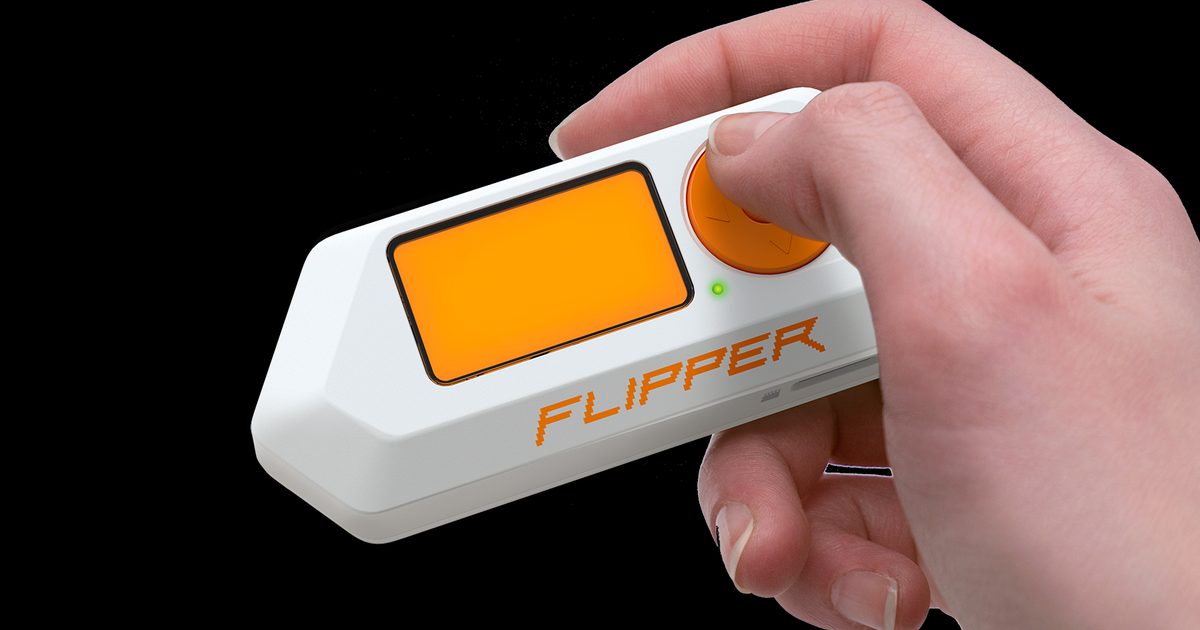
Header image: Official Flipper Zero in-hand photo. Image: Flipper Devices. Source: flipperzero.one.
Disclosure: some links below are Amazon affiliate links (tag cao04-20). Costs you nothing; the picks are the same either way. The Flipper.net links are plain links.
Note: Research was conducted on November 10, 2026 (America/New_York). Pack lists and firmware versions change; re-check the official Asset Packs pages before you install a pack.
Part 5 of the Flipper Zero Momentum Beginner Guidebook. You should already have Momentum installed (Part 3) and know how to open MNTM (Part 4). Next is Part 6, where the radios start. This part is just theming.
As of November 10, 2026, this series still pins mainline mntm-012. You need a current Momentum install, not an older “v40” label. The Assets wiki still says “Asset Packs were added in v40,” which is older Xtreme-era numbering, not an mntm-012 version requirement.
Who this bites
This is for people who want a different animation, icon set, or font on Momentum without compiling firmware. If you stayed on Official Firmware, you do not have Asset Packs. If you are on RogueMaster, you have a different, animation-only pack format; this walkthrough is for Momentum.
This is a low-risk part. Changing a theme will not make Sub-GHz, NFC, or BadUSB legal to use on systems you do not own. It is also not a spoofing guide — name and MAC spoofing live under MNTM → Misc, covered in Part 4, and stay lab-only. If you want a stock look again, switch the Asset Pack back to the default in Graphics; you should not need to reflash firmware just to undo a theme.
Asset Packs vs just animations
Asset Packs are exclusive to Momentum and its predecessor Xtreme. They let you load custom animations, icons, and fonts without recompiling, and without editing manifest.txt files just to switch packs. Official Firmware has no equivalent. RogueMaster uses a different format (manifest_xyz.txt) that supports animations only, not icons and fonts, per footnote 5 on Momentum’s comparison table.
A pack can include any combination of Anims/, Icons/, and Fonts/. The install page emphasizes Anims and Icons; the Graphics wiki also lists Fonts. There is not a fourth official folder in this sheet. You can ship only Anims or only Icons; the wiki says the missing half falls back to defaults (default SFW icons if you only include Anims, and vice versa).
Momentum’s level system goes up to level 30, and pack manifests should account for that. This series will not invent XP tables.
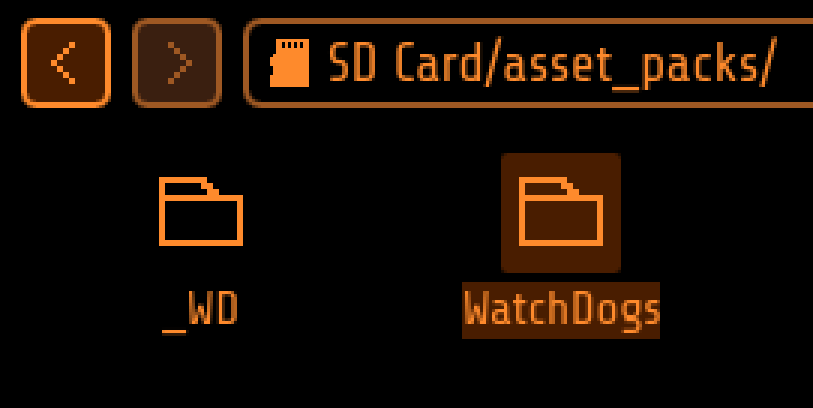
Screenshot: Asset Packs folder on the SD card. Screenshot: Next-Flip / Momentum Firmware (README). Source: GitHub README assets.
Where files live on the SD card
Packs live at SD/asset_packs, also described as /ext/asset_packs. After a correct install you should see SD/asset_packs/PackName/Anims and/or Icons (and, if the pack includes them, Fonts). If the asset_packs folder is missing, the wiki says to reinstall firmware or create the folder.
Saved remotes, keys, and other user files also live on the same card. Official docs call a regular 16–32 GB branded card sufficient; a SanDisk 32GB Ultra microSDHC card is one option in that band. A data-capable Anker USB-A to USB-C cable helps if you are copying packs over with qFlipper.
Do not mix files from two packs into one folder and hope it works. This series will not give unsourced mix-and-match instructions. Install complete pack folders, then select one pack in MNTM.
Install / switch packs in Momentum Settings
The official Assets wiki steps are short:
- Be on an updated Momentum install.
- In qFlipper, open the SD card →
asset_packs. Create the folder if it is missing, or reinstall firmware. - Unzip packs and upload the pack folders so you see
SD/asset_packs/PackName/Animsand/orIcons. - On the Flipper, press UP on the Desktop (home screen) and open Momentum Settings / MNTM. Under Interface → Graphics, select the pack. When you back out, the Flipper restarts and uses that pack.
Graphics also lets you set Anim Speed (25–300%, default 100%, in 25% steps), Cycle Anims (OFF, Meta.txt default, or a timed interval from 15 seconds to 24 hours), and Unlock Anims (off by default, so the pack honors dolphin level and mood; on, it can show all pack animations). Those ranges come from the Graphics wiki. This series will not invent battery-impact numbers for animations.
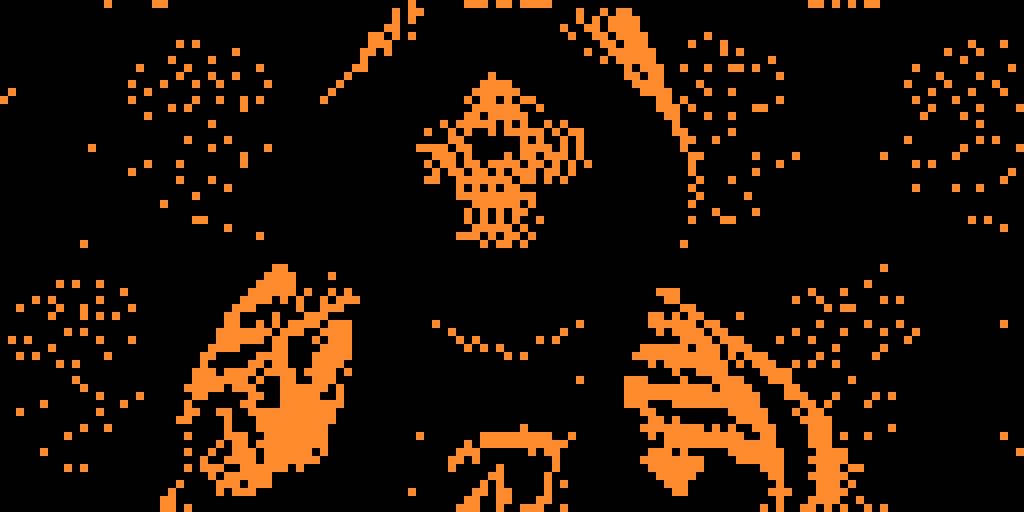
Screenshot: Asset Pack applied in Momentum Settings. Screenshot: Next-Flip / Momentum Firmware (README). Source: GitHub README assets.
Community packs list
Momentum hosts community packs at https://momentum-fw.dev/asset-packs. On Chrome-based browsers you can install some of them directly to a connected Flipper. There is also a GitHub repo, Next-Flip/Asset-Packs, which accepts PRs to add packs, and a Discord channel. The official list is not complete, and this series will not invent pack counts or a “best packs” ranking. Use the official list, and do not copy copyrighted pack art into your own posts without a license.
Direct install from the website is a convenience, not a requirement. The qFlipper copy path above still works if you already have a zip.
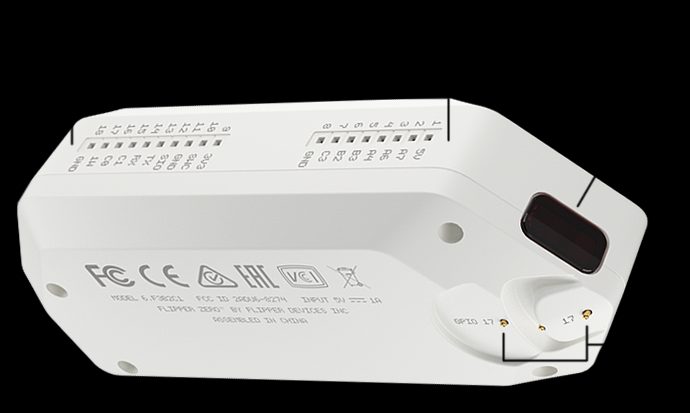
Image: Official Flipper Zero product render. Image: Flipper Devices. Source: flipperzero.one.
A pack is just files on the card. It does not recompile the firmware, and it does not change what the radios are allowed to do. If a pack looks broken after a firmware update, try a current pack from the official list, or re-select the pack in Graphics after the update. This series will not invent a compatibility matrix between old packs and new mainline builds; if a pack fails with one of the official error messages above, start with structure and meta.txt, not with guessing.
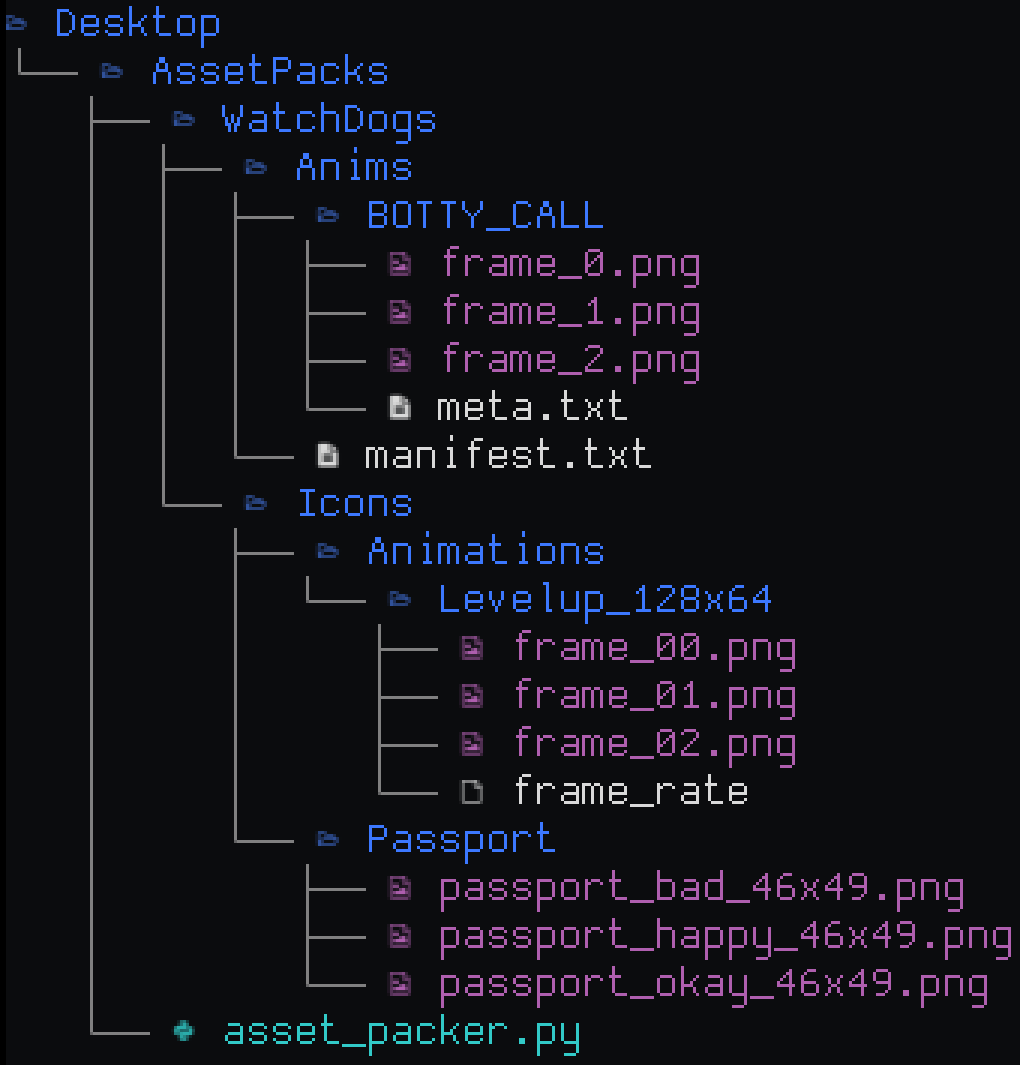
Image: Official Asset Packs wiki structure graphic. Image: Next-Flip / Momentum Firmware. Source: momentum-fw.dev/wiki/Assets.
Make-your-own (pointer only)
Making a pack is optional and out of scope for a beginner walkthrough. The official wiki describes scripts/asset_packer.py compiling PNGs to .bm / .bmx, and Anims using Flipper’s standard animation format (.bm frames, meta.txt, plus a pack-level manifest.txt with level, mood/“butthurt” constraints, and weight). The key difference from stock dolphin animations is the path: packs go in SD/asset_packs/PackName/Anims instead of SD/dolphin. If you want to author a pack, follow the official wiki. This part will not paste a full authoring tutorial, and it will not claim the manifest schema changes between major releases.
Troubleshooting missing icons
- Missing
asset_packsfolder: create it, or reinstall firmware. - “Can’t upload animation described in manifest: PackName”: bad structure, corrupt
.bmframes, or a problem inmeta.txt/manifest.txt. - “Error loading animation: frames order”: the frame order or frame counts in
meta.txtare wrong. The wiki notes that if a frame is listed twice, you count each instance. - Icons look wrong after you select a pack: confirm the pack actually includes an
Iconsfolder, and that you selected that pack in MNTM → Interface → Graphics → Asset Pack. A pack with only Anims will fall back to default icons. - The device restarts after you select a pack. That is expected.
Legal and ethics
This guidebook is for learning on hardware and tags you own, or have written authorization to test. Transmitting on restricted frequencies, cloning access credentials, interfering with other people’s devices, or using BadUSB / Bad KB against systems you do not own can be illegal. Custom firmware increases capability; it does not increase your legal rights. When in doubt, don’t transmit and don’t emulate. Local laws vary. This part is theming only.
Checklist
- Confirm you are on current Momentum mainline (mntm-012 as of November 10, 2026, or whatever is current when you read this).
- Open
SD/asset_packsin qFlipper. Create the folder if it is missing. - Upload complete pack folders, not a pile of mixed files.
- On the Flipper, open MNTM → Interface → Graphics and select the pack. Wait for the restart.
- If icons are wrong, check that the pack includes an Icons folder.
- Leave spoofing and radio toggles alone; this part is only a theme change.
- Continue to Part 6 when you want Sub-GHz, still on hardware you own.
FAQ
Do I have to recompile firmware to change the theme?
No. That is the point of Asset Packs on Momentum.
Can I use a RogueMaster animation pack as a Momentum Asset Pack?
Not as a drop-in. RogueMaster uses a different, animation-only format. Use packs built for Momentum, or follow Momentum’s own authoring wiki.
Why does the wiki mention v40?
That is older Xtreme-era numbering. You need a current Momentum install (this series pins mntm-012), not “v40” of current Momentum.
Will a pack drain the battery faster?
This series does not have a measured answer, so it will not invent one. If drain seems high, official docs still point you at Settings → Power → Battery Info and at branded SD cards first (Part 2).
Can I run two packs at once, or mix icons from one pack with animations from another?
Select one pack in Graphics. Missing Anims or Icons in that pack fall back to defaults. This series will not document an unsourced mix-and-match workflow.
The bottom line
Copy a complete pack into SD/asset_packs, pick it in MNTM → Interface → Graphics, and let the Flipper restart. If the icons are wrong, the pack probably has no Icons folder. Leave the radio and identity toggles for the parts that actually cover them.
Previous: Part 4 – Momentum Settings App: Customize Flipper Zero Menus, Keybinds, and Lockscreen Next: Part 6 – Flipper Zero Sub-GHz for Beginners on Momentum (Read, Save, Legal Limits)
Sources
5 refs- https://momentum-fw.dev/wiki/Assetsmomentum-fw.dev
- https://momentum-fw.dev/wiki/Interface/Graphicsmomentum-fw.dev
- https://momentum-fw.dev/wiki/Assets/Community-Asset-Packsmomentum-fw.dev
- https://momentum-fw.dev/asset-packsmomentum-fw.dev
- https://momentum-fw.dev/momentum-fw.dev
comments
loading comments…
No comments yet. Start the thread.