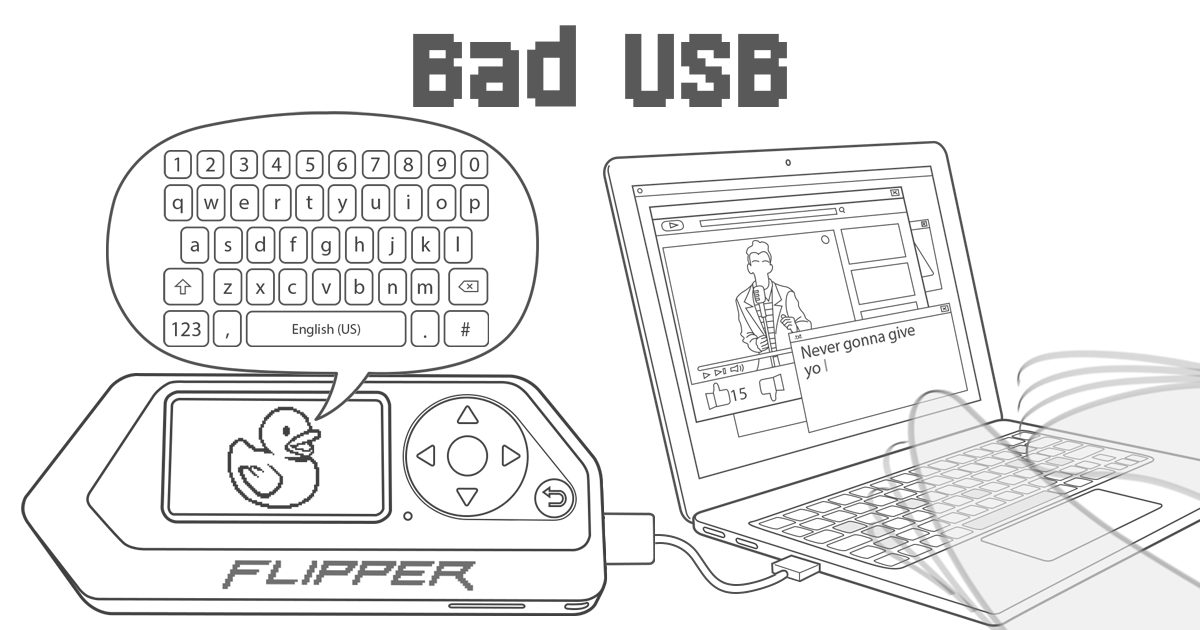
Header image: Official Flipper documentation artwork for Bad USB. Image: Flipper Devices. Source: docs.flipper.net. Use this only on machines you own.
Disclosure: some links below are Amazon affiliate links (tag cao04-20). Costs you nothing; the picks are the same either way. The Flipper.net links are plain links.
Note: Research was conducted on November 10, 2026 (America/New_York). Menu labels and Bad KB options can change; this part stays at officially documented behavior and will not invent option names.
Part 8 of the Flipper Zero Momentum Beginner Guidebook. Previous: Part 7, NFC and RFID. Next: Part 9, FindMy and Bluetooth tools. Infrared first, then BadUSB / Bad KB, both limited to hardware you own.
As of November 10, 2026, this series still pins mainline mntm-012.
Who this bites
This is for people who want to replace a lost household remote, or who want to understand what BadUSB actually does, without collecting attack scripts. You need a TV, air conditioner, or other IR device you own, and a computer you own. A data-capable Anker USB-A to USB-C cable is enough for USB BadUSB; the included lead works if it carries data. Learned remotes and payloads live on the microSD card; a SanDisk 32GB Ultra microSDHC card is plenty.
If you wanted a “leave this at a front desk” payload, a credential stealer, or a way to hijack a stranger’s TV in a bar, this is the wrong guide.
Legal and ethics note
This guidebook is for learning on hardware and tags you own, or have written authorization to test. Transmitting on restricted frequencies, cloning access credentials, interfering with other people’s devices, or using BadUSB / Bad KB against systems you do not own can be illegal. Custom firmware increases capability; it does not increase your legal rights. When in doubt, don’t transmit and don’t emulate. Local laws vary.
BadUSB / Bad KB payloads belong only on machines you own or have written authorization to test. No credential-stealing payloads. No “leave this at a front desk” framing. Official BadUSB docs describe, in general terms, that a BadUSB device can change settings or open shells. This series will not expand that into recipes. A safe lab demo is opening a text editor on your own PC and typing a line you already understand.
Infrared is easier to misuse in public than it looks. Use Universal Remotes and Learn New Remote on your devices, not as a way to mess with a display you do not control.
IR: learn, save, universal remotes (own devices)
The Flipper has a built-in IR module behind the transparent window: three transmitting IR LEDs and an IR receiver. Official product specs list RX around 950 nm and TX around 940 nm, and supported protocol families that include the NEC family, Kaseikyo, RCA, RC5/RC6, Samsung, and SIRC. That list is official and not exhaustive.
The official Infrared app includes:
- Universal Remotes, which iterates a dictionary of known commands stored on the SD card for common TVs, ACs, and similar devices. Official docs also call this a brute-force of the dictionary and note that it takes a few seconds. Frame it as controlling your devices from a known-command library, not as an attack.
- Learn New Remote, which reads and saves buttons from an existing remote, each button separately.
- Saved Remotes, where you edit and play back what you learned.
- GPIO Settings for signal output and power if you add an external IR transmitter. That is a pointer only, not a wiring guide.
Community-updated IR libraries exist. This series will not invent library sizes or brand-coverage numbers. Point the remote at the Flipper’s IR window when learning, then point that same window at your device when sending. Learn one button at a time, name the buttons clearly, and test each button on your own equipment before you throw the original remote in a drawer. If a learned button does nothing, re-learn it rather than assuming a protocol name the device may or may not show. This series will not invent range figures, current-draw numbers, or a guaranteed protocol label after learning.
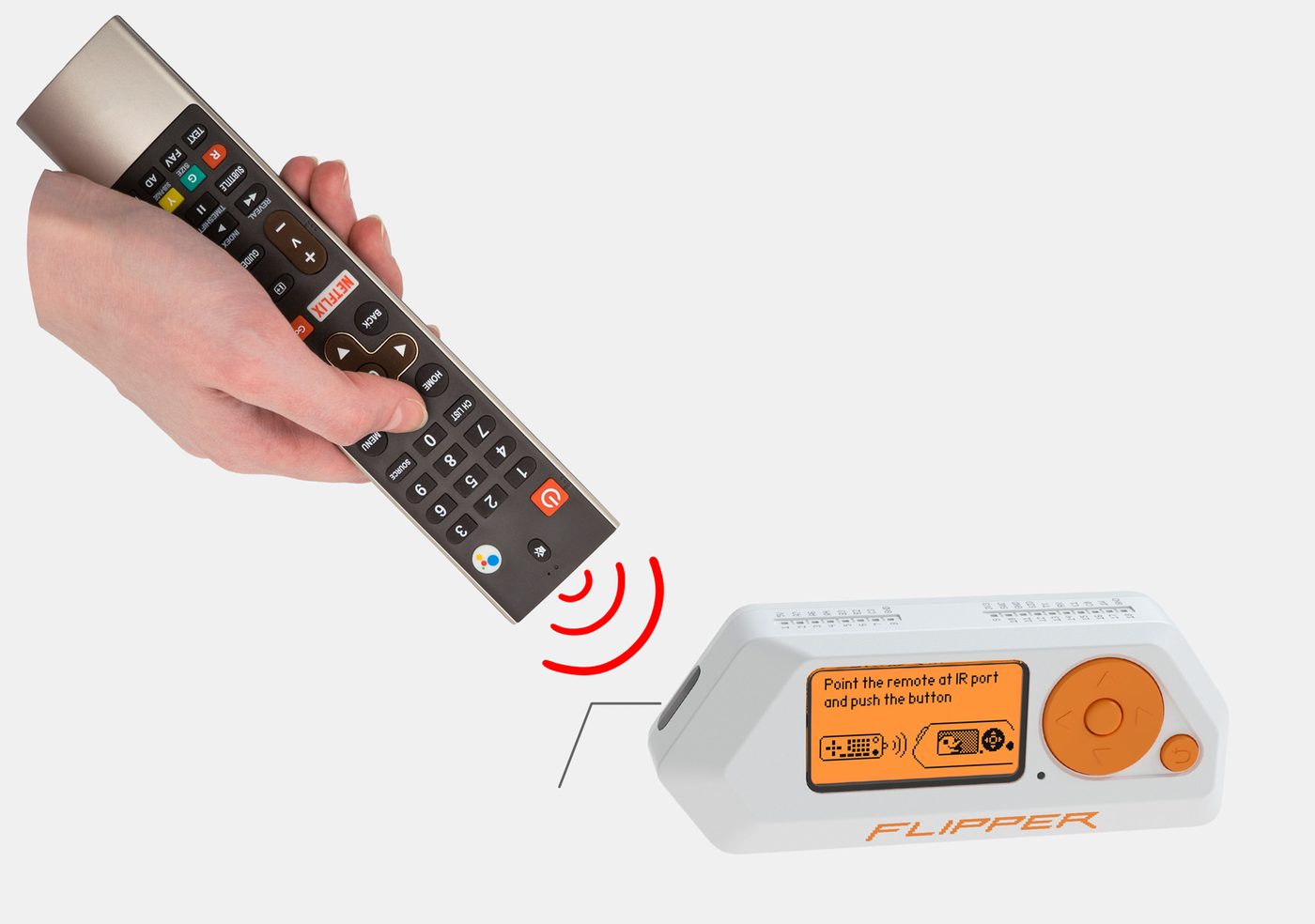
Image: Official Flipper Zero infrared product photo. Image: Flipper Devices. Source: flipperzero.one.
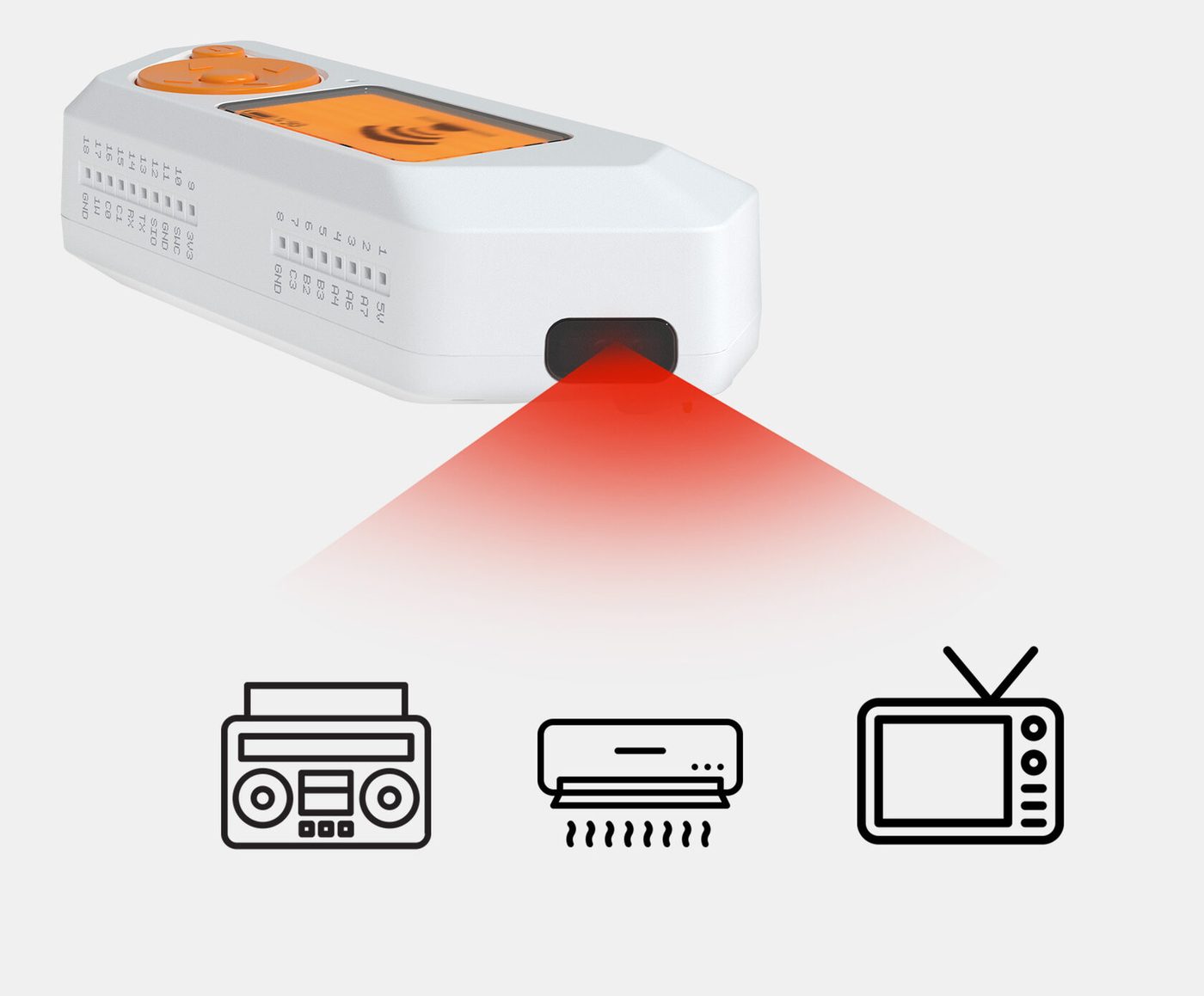
Image: Official Flipper Zero infrared schematic artwork. Image: Flipper Devices. Source: flipperzero.one.
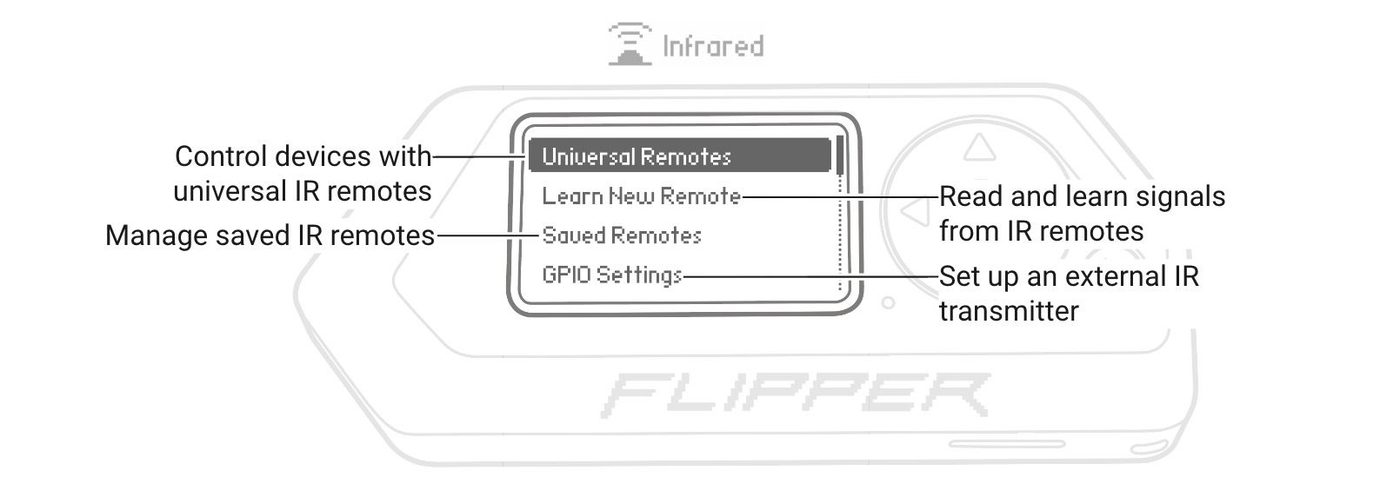
Image: Official Flipper Infrared app menu. Image: Flipper Devices. Source: docs.flipper.net.
BadUSB vs Bad KB — conceptual difference
Officially, Flipper can act as a USB HID — a keyboard, and official docs also mention mouse. Payloads are text scripts in an extended Rubber Ducky / DuckyScript-compatible language, stored as .txt files in SD Card/badusb/, and uploaded with qFlipper or the official mobile app.
Official USB flow, in short: close qFlipper first if you are running the payload on the same computer, then Main Menu → Bad USB → select the payload → confirm USB mode (USB logo) → optionally set Layout (US English is the default) → connect the USB cable → Run.
Official docs also describe Bluetooth Low Energy BadUSB: enable Bluetooth in Settings, close qFlipper, select the payload, then connect from the computer’s Bluetooth settings to the wireless BadUSB device. That official BLE HID path is also the conceptual backbone for Part 9’s “helpful Bluetooth tools” note.
Momentum and other custom firmwares add extra Bad KB options in the Bad USB menu, per the comparison table, as proposed to Official Firmware in PR 4136. Those extras exist. This series will not invent option names, advertising modes, or exploit features. If you do not have a current, sourced inventory of those labels, stay at “extra Bad KB options exist in the Bad USB menu on Momentum.”
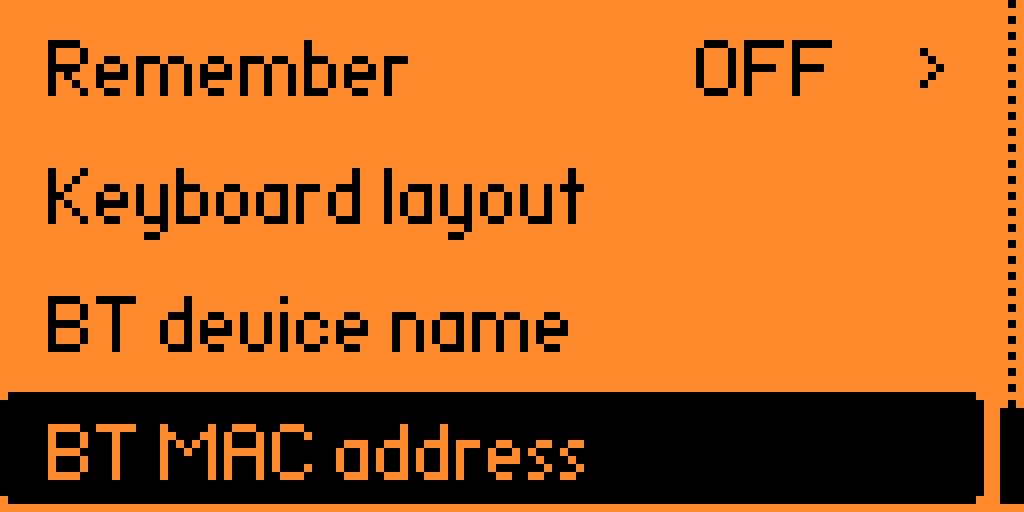
Screenshot: Bad KB on Momentum. Screenshot: Next-Flip / Momentum Firmware (README). Source: GitHub README assets. This screenshot is documentation, not a prompt to run the payload against anyone else’s machine.
Safe lab demos on your own machines
Keep the first payload boring. A script that opens a text editor and types a single line you wrote is enough to prove the path works. Do not include keystroke payloads that open admin tools, download files, or exfiltrate data. Do not paste attack scripts into this hobby.
Close qFlipper before you run BadUSB on the same computer. If the computer does not see a keyboard, try a data-capable cable, a different port, and USB mode rather than BLE for the first test. If you use BLE, pair it the way official docs describe, on a machine you own. Wireless does not make the payload less of a keyboard. The same harmless-script rule applies, and the same ‘only your computer’ rule applies. If a pairing dialog appears on a machine that is not yours, cancel it and stop. There is no ‘just testing’ exception for someone else’s laptop in a cafe, an office, or a classroom. Written authorization, or your own machine, is the line.
Learned IR remotes and BadUSB files both survive a firmware flash if they are on the SD card, because user files live on the card. Back them up by copying the files, not by relying on qFlipper Backup/Restore.
Skip-if
- The TV, AC, or computer is not yours, and you do not have written authorization.
- You wanted a credential-stealing payload or a public-prank walkthrough.
- You wanted a list of unsourced Momentum Bad KB option names.
- You do not want a device that can act as a keyboard on a connected computer. Stay out of the Bad USB app, and stay on Official Firmware if even having the capability is a problem (Part 1).
Checklist
- Use only remotes and computers you own, or have written authorization to test.
- For IR, start with Universal Remotes on your own TV or AC, or learn buttons one at a time from your existing remote.
- Save learned remotes to the SD card.
- For BadUSB, write or pick a harmless payload you understand. Do not download an “attack pack.”
- Close qFlipper before running a payload on the same computer.
- Use USB mode and a data-capable cable for the first test. Optionally set the keyboard layout.
- Treat BLE BadUSB as a second path, still only to a machine you own.
- Do not inventory or chase unsourced Bad KB option names.
- Copy SD files if the remotes or payloads matter.
- Continue to Part 9 for FindMy and Bluetooth ethics.
FAQ
Will flashing Momentum erase my saved IR remotes?
User data lives on the SD card. Installing firmware does not by itself wipe those files, but back them up first by copying the card.
How many BadUSB payloads can I store?
The practical limit is free space on the SD card. Each payload is a plain-text file. This series will not invent a “thousands of scripts” count.
Does the Flipper tell me the IR protocol after I learn a remote?
This series does not have a sourced, current answer for a protocol-name display after learning, so it will not claim one. If your build shows a protocol label, treat the on-device UI as the source.
Can I use BadUSB over Bluetooth?
Official docs describe a BLE BadUSB path. Enable Bluetooth, close qFlipper, select the payload, and connect from the computer you own. Momentum adds extra Bad KB options in that menu; this part will not name unsourced ones.
Is there a safe default payload?
Yes: something that types into an editor on your own PC and does nothing else. If you cannot read the script, do not run it.
The bottom line
Learn your own remotes, keep a harmless BadUSB script for your own computer, and treat everything else as out of scope. Momentum adds Bad KB options; it does not add permission to use them on anyone else’s machine.
Previous: Part 7 – Flipper Zero NFC and RFID Beginner Guide Next: Part 9 – FindMy Flipper and Bluetooth Tools on Momentum
Sources
5 refs- https://docs.flipper.net/zero/infrareddocs.flipper.net
- https://docs.flipper.net/zero/bad-usbdocs.flipper.net
- https://flipperzero.one/flipperzero.one
- https://momentum-fw.dev/momentum-fw.dev
- https://github.com/Next-Flip/Momentum-Firmware/releases/tag/mntm-012github.com
comments
loading comments…
No comments yet. Start the thread.