The $299 Box That Replaces the File-Sharing SaaS Subscription You've Been Paying For Since 2022
A $299 two-bay Synology NAS replaces the $50-100/month file-sharing or client-portal subscription your five-person shop has been renting since 2022.
Disclosure: some links below are Amazon affiliate links (tag cao04-20). Costs you nothing; the picks don’t change based on that. Every spec and price below is sourced at the bottom.
Note: This runs alongside today’s piece on McKinsey’s State of AI 2026 survey, which found 32% of organizations skipped a software purchase this year because they could build the equivalent themselves. That stat is mostly an enterprise story about internal engineering teams and coding agents. This is the version of it that’s been true for small shops for years, with or without an agent: a lot of “software,” for a lot of small operations, is really just a place to put files that other people can get to. You can own that outright for a couple hundred dollars instead of renting it forever.
Open your business bank statement and find the file-sharing or client-portal line. Dropbox Business, a “client portal” SaaS tool, a shared-drive add-on bolted onto your email plan — something in the $10–20/month per person range, which for a five-person shop is $50–100/month, every month, for as long as the business exists.
Here’s what that subscription is actually buying you, stripped of the marketing: a place to put files, a way to share specific folders with specific people, and automatic backup so a laptop dying doesn’t take your invoices with it. That’s it. That’s the whole feature set most small shops actually use.
A $299 two-bay NAS does all three of those things, once, and then it’s yours.
This is the quiet cost of subscription creep that most small shops never actually audit: nobody sits down once a year and asks “do we still need this, or did we just never cancel it?” A file-sharing tool that made sense when the business was two people and a laptop is often still running, unquestioned, at five people and a real office, because canceling it feels riskier than the monthly charge feels expensive. It usually isn’t riskier — it’s just never been on anyone’s to-do list.
The pick: Synology DS224+
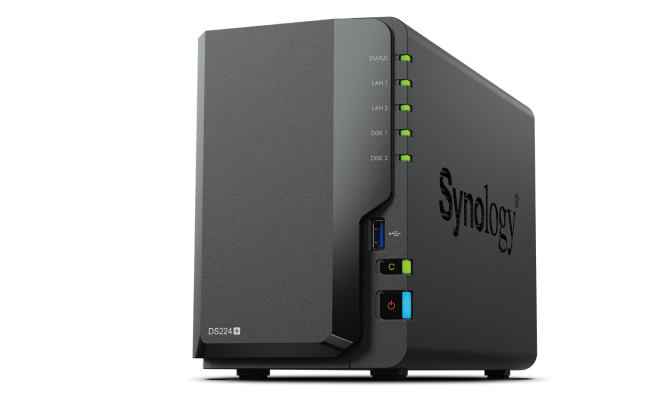 The DS224+: two drive bays, one small box, runs Synology’s own DSM software over your browser. Photo: Synology.
| Spec | Detail |
|---|---|
| CPU | Intel Celeron J4125, 4-core, 2.0GHz (burst to 2.7GHz) |
| RAM | 2GB DDR4, expandable to 6GB |
| Drive bays | 2x 3.5”/2.5” SATA (HDD or SSD) |
| Networking | Dual Gigabit Ethernet |
| OS | Synology DSM (browser-based) |
| Price (diskless enclosure) | Around $299 |
Sources: Synology official product page, Amazon listing, StorageReview.
Note the price above is for the diskless enclosure — you supply the drives. Budget another $80–150 for a pair of NAS-rated drives (2–4TB each is plenty for most small shops’ documents, invoices, and photos) depending on capacity, run as mirrored storage so one drive failing doesn’t lose your data. All-in, a real working setup lands around $400–450 one time, versus $50–100/month forever for the SaaS equivalent.
Check current DS224+ pricing here.
Why this specific box and not a generic “$100 NAS on Amazon”
The generic sub-$100 NAS enclosures on Amazon are usually built around older, weaker hardware and thinner software, and the reviews tend to reflect it — slow transfer speeds, clunky mobile apps, and setup instructions that assume you already know what a static IP is. They’re not a scam, but they’re a worse trade for a small shop specifically because the software gap is where the actual time savings live. Paying an extra $100-150 for DSM is closer to paying for a well-designed piece of software than for extra plastic and metal.
There are cheaper NAS enclosures. The reason this is the pick and not the cheapest option: Synology’s DSM software is the actual product here, not the hardware. DSM gives you a browser-based admin panel that non-technical staff can use to create shared folders, set per-person permissions, and access files remotely from a phone or laptop — genuinely closer to “a client portal you clicked together” than “a server you configured.” That’s the gap that makes this a realistic buy-once replacement for a subscription tool instead of a project that needs a dedicated IT person.
Alternative: TerraMaster F2-424, if you want more power for less money
| Spec | Detail |
|---|---|
| CPU | Intel N95, 4-core, up to 2.9GHz |
| RAM | 8GB DDR5 |
| Networking | Dual 2.5GbE Ethernet |
| Price (diskless) | Around $285–305 |
Source: Slickdeals pricing history and spec listing.
On paper, this is a better machine than the DS224+ for close to the same money — more RAM, a faster CPU, and 2.5GbE ports that will actually saturate faster than the Synology’s Gigabit ports if you’re moving large files. The honest tradeoff: TerraMaster’s TOS software is less polished than Synology’s DSM, and the mobile apps and remote-access setup are rougher around the edges. For a technical operator comfortable troubleshooting occasionally, the F2-424 is genuinely the better value. For a shop where “the least technical person on the team needs to be able to use this without calling anyone,” the DS224+‘s software is worth the premium.
Side by side
| Synology DS224+ | TerraMaster F2-424 | |
|---|---|---|
| Price (diskless) | ~$299 | ~$285–305 |
| RAM | 2GB (exp. to 6GB) | 8GB DDR5 |
| Networking | Dual Gigabit | Dual 2.5GbE |
| Software polish | Higher — DSM is the industry benchmark for ease of use | Functional, less refined |
| Best for | Non-technical team, “set it and forget it” | Technical operator wanting more raw performance per dollar |
What it replaces, concretely
| SaaS category you might be paying for | What the NAS does instead |
|---|---|
| Dropbox Business / Google Workspace shared drives | Shared folders with per-user permissions, accessible from any browser or the Synology phone app |
| A basic “client portal” tool | A shared folder per client, with a login you control, no per-seat fee |
| A separate cloud backup subscription | Scheduled backup jobs to the NAS from every machine in the shop, included in DSM |
| A photo/document archive tool | Built-in photo and file indexing, searchable from the browser |
This connects directly to the cheap home server for file backups piece already on this site — the NAS is the hardware layer under that workflow, and it’s the same underlying idea as the spreadsheet-is-not-a-business-system piece and the DIY employee scheduling build: own the boring infrastructure instead of renting it in monthly slices forever.
The honest math over three years
| Year 1 | Year 2 | Year 3 | 3-year total | |
|---|---|---|---|---|
| SaaS file-sharing/portal tool ($75/mo avg, 5 users) | $900 | $900 | $900 | $2,700 |
| DS224+ NAS + 2 drives (one-time) + electricity (~$15/yr) | $450 + $15 | $15 | $15 | $495 |
That’s a $2,200+ difference over three years for a genuinely comparable feature set — shared files, permissions, remote access, backup. The NAS doesn’t do everything a full-featured SaaS suite does (no built-in e-signature workflow, no fancy client-facing branding out of the box), which is exactly why the next section matters.
When not to buy this
If you need e-signatures, invoicing, or workflow automation bundled in, a NAS is file storage and sharing, not a full client-portal platform. You’ll still need separate tools for those specific features, and for some shops the bundled SaaS tool is worth it precisely because it saves you from stitching four things together. Be honest about which features you actually use before you cancel anything.
If nobody on your team is willing to spend one afternoon on initial setup, this isn’t a zero-effort swap. DSM is genuinely easy for day-to-day use, but the first setup — creating the storage pool, setting up user accounts, configuring remote access safely — takes a real afternoon. If that afternoon doesn’t exist in anyone’s week for the next month, stay on the subscription until it does.
If your files are already deeply integrated into a platform-specific workflow — Google Docs collaborative editing, Microsoft 365’s coauthoring — a NAS doesn’t replicate live document collaboration well. It’s built for file storage and sharing, not real-time co-editing. Don’t force a square peg here; keep the collaboration suite and use the NAS for backup and archival instead.
If you’re not comfortable being your own IT department for this one box, remember that “self-hosted” also means “self-supported.” There’s no vendor support line if something goes wrong at 11pm — same tradeoff covered in the McKinsey build-vs-buy piece: you’re trading a recurring bill for a one-time cost plus the responsibility of maintaining it yourself.
Which drives to actually buy
The enclosure is half the purchase. The drives matter just as much, and this is the step people most often get wrong by grabbing whatever’s cheapest.
WD Red Plus 4TB NAS Hard Drive — the standard, boring, correct choice for this build. NAS-rated drives are built and rated for 24/7 operation and continuous vibration from a multi-drive enclosure, which a desktop drive isn’t designed for. Buy two of these (not one), set them up as a mirrored pair, and you have roughly 4TB of usable, redundant storage — enough for years of documents, invoices, and photos for most small shops.
If your working set is genuinely bigger — you’re storing a lot of video, high-resolution photography, or design files — step up to 8TB drives instead of adding a third bay you don’t have. The price difference between 4TB and 8TB NAS drives is usually smaller than it looks once you account for buying two.
Check current WD Red Plus pricing and capacities here.
Protect it from power loss too
A NAS with mirrored drives protects you from one drive failing. It does nothing if the power goes out mid-write or a breaker trips during a storm — an ungraceful shutdown can corrupt a file system even on redundant storage, which is a different failure mode than the one RAID 1 is built to catch. A small UPS (uninterruptible power supply) closes that gap, and it’s a smaller add-on than it sounds: something like a CyberPower EC850LCD (850VA/510W, roughly $115–120) is more than enough for a two-bay NAS drawing 20–60W, with enough runtime for a graceful automatic shutdown rather than a hard power-cut (UPS wattage and pricing guidance). DSM has built-in support for triggering a safe shutdown when a connected UPS reports low battery, so this isn’t a manual step you have to remember mid-outage — set it up once during initial configuration and it just works the next time the power blinks.
Budget the UPS as part of the initial cost, not an afterthought: call it $450–570 all-in (enclosure, two drives, UPS) instead of $400–450. That still clears the three-year SaaS comparison by a wide margin, and it closes a real failure mode that mirrored drives alone don’t cover.
Don’t forget the off-site copy
Everything above protects you from a drive dying or the power flickering. None of it protects you from the building burning down, the NAS getting stolen, or a mistake that deletes files on the NAS and syncs the deletion everywhere DSM is watching. That’s what the 3-2-1 backup principle mentioned earlier — three copies, two media types, one off-site — is actually for, and it’s the one place a NAS alone genuinely doesn’t match a cloud SaaS tool’s built-in redundancy.
The fix doesn’t have to be expensive. Synology’s own C2 Backup service, built to pair directly with DSM, runs $34.99/year for 500GB or $99.99/year for 2TB of off-site backup space — cheap enough that budgeting $3–8/month for an off-site copy of your genuinely irreplaceable files (contracts, tax records, anything you couldn’t recreate) still leaves the three-year math overwhelmingly in the NAS’s favor (C2 Backup pricing). Treat it the way you’d treat insurance: it’s the line item that feels unnecessary right up until the day it isn’t.
What to actually do with it
Once the box and drives are on the desk, the setup itself is a Saturday-morning project, not a weekend-long ordeal. Here’s the order that avoids the most common mistakes:
- Buy two NAS-rated drives, not desktop drives — they’re built for 24/7 operation and it matters over a multi-year lifespan. Budget $80–150 total for a 2–4TB mirrored pair.
- Set up storage as mirrored (RAID 1), not striped, so one drive dying doesn’t take your data with it. This costs you half your raw capacity and is worth every bit of it.
- Create individual accounts per person, not one shared login, so permissions and activity logs actually mean something.
- Turn on scheduled backups from every machine that matters before you turn off any existing backup subscription — verify the new backup actually works before you cancel the old one.
- Set up remote access through Synology’s own secure relay rather than opening ports on your router directly, unless you know exactly what you’re doing with a firewall.
What to skip
- Skip buying desktop-class hard drives to save money. NAS-rated drives cost a bit more and are built for the 24/7 duty cycle this box will actually run.
- Skip single-drive setups. Two bays running mirrored is the entire point — a NAS with one drive and no redundancy is just an expensive external drive with extra steps.
- Skip exposing DSM directly to the internet without going through Synology’s QuickConnect/relay service or a proper VPN. This is the one place a DIY setup can genuinely be less safe than a managed SaaS tool if configured carelessly.
- Skip this entirely if your current subscription is under $20/month total. The payback period gets long enough that it’s not worth the setup afternoon; save the swap for the tools actually costing you real money every month.
Quick answers
Is a NAS actually as reliable as a cloud SaaS tool? For the core job — file storage, sharing, and backup — yes, provided you run mirrored drives (RAID 1) and keep at least one copy of critical files off-site or in a secondary cloud backup. A NAS alone isn’t a full disaster-recovery plan any more than a single cloud subscription is; the 3-2-1 backup principle (three copies, two media types, one off-site) still applies.
What happens if the NAS itself fails, not just a drive? This is the real gap versus a cloud service — a cloud provider’s infrastructure failing is their problem to fix; your NAS failing is yours. Mitigate it by keeping a secondary backup (even a cheap cloud backup tier) of anything genuinely irreplaceable, and treat the NAS as your primary working copy, not your only copy.
Do I need networking knowledge to set this up? Basic comfort with your router’s admin page helps, but Synology’s DSM walks you through the common setup steps (storage pool, user accounts, remote access via QuickConnect) without requiring you to understand RAID levels or port forwarding in depth.
How long does a NAS like this actually last? Three to five years of hardware life is typical before you’d consider an upgrade, and the drives themselves are usually the first thing to need replacing, not the NAS enclosure. Either way, the payback period against a $75/month SaaS subscription is well under a year.
Will this work if my team is bigger than five people? Yes, with caveats. DSM handles more users fine — the constraint is storage capacity and network bandwidth, not user count. A shop of 10-15 people doing normal document and file work is still comfortably inside what a two-bay NAS with 4-8TB drives can handle. Once you’re routinely moving large video files or need more than a couple of simultaneous heavy users, that’s when a four-bay unit or a business-tier switch starts to matter more than the NAS itself.
Bottom line
The stat making headlines this week is enterprises building internal software instead of buying it. The version of that idea that’s actually accessible to a five-person shop this month isn’t a coding project — it’s recognizing that “file sharing with permissions and backup” is infrastructure you can own outright for the cost of about four to six months of the subscription you’re currently renting it as. A $299 diskless NAS plus two drives gets you there in an afternoon, with three years of runway before you’ve even matched what the SaaS tool would have cost you.
See current Synology DS224+ pricing and configurations on Amazon.
Sources
All prices and specs accessed September 5, 2026.
- Synology DS224+ official specifications — Synology product page
- DS224+ pricing and listing details — Amazon
- DS224+ hands-on review and performance notes — StorageReview
- McKinsey State of AI 2026 build-vs-buy statistic, cited for context — McKinsey, “The State of AI: Global Survey 2026,” August 25, 2026
- UPS wattage sizing and pricing for small NAS units — Igniting Business, “Best Battery Backup (UPS) for Your NAS Server”
- Synology C2 Backup off-site pricing — Synology C2 Backup for Individuals pricing page