How to Build a Barcode Inventory System With a $30 Scanner and a Spreadsheet
A USB barcode scanner is just a keyboard that types numbers and hits Enter. That's the whole secret. Here's the real afternoon build — and the three moments you should stop using a spreadsheet.
Heads up: some links below are affiliate links. Buy through them and we earn a small commission at no cost to you. We only point you at gear we’d actually plug into our own desk.
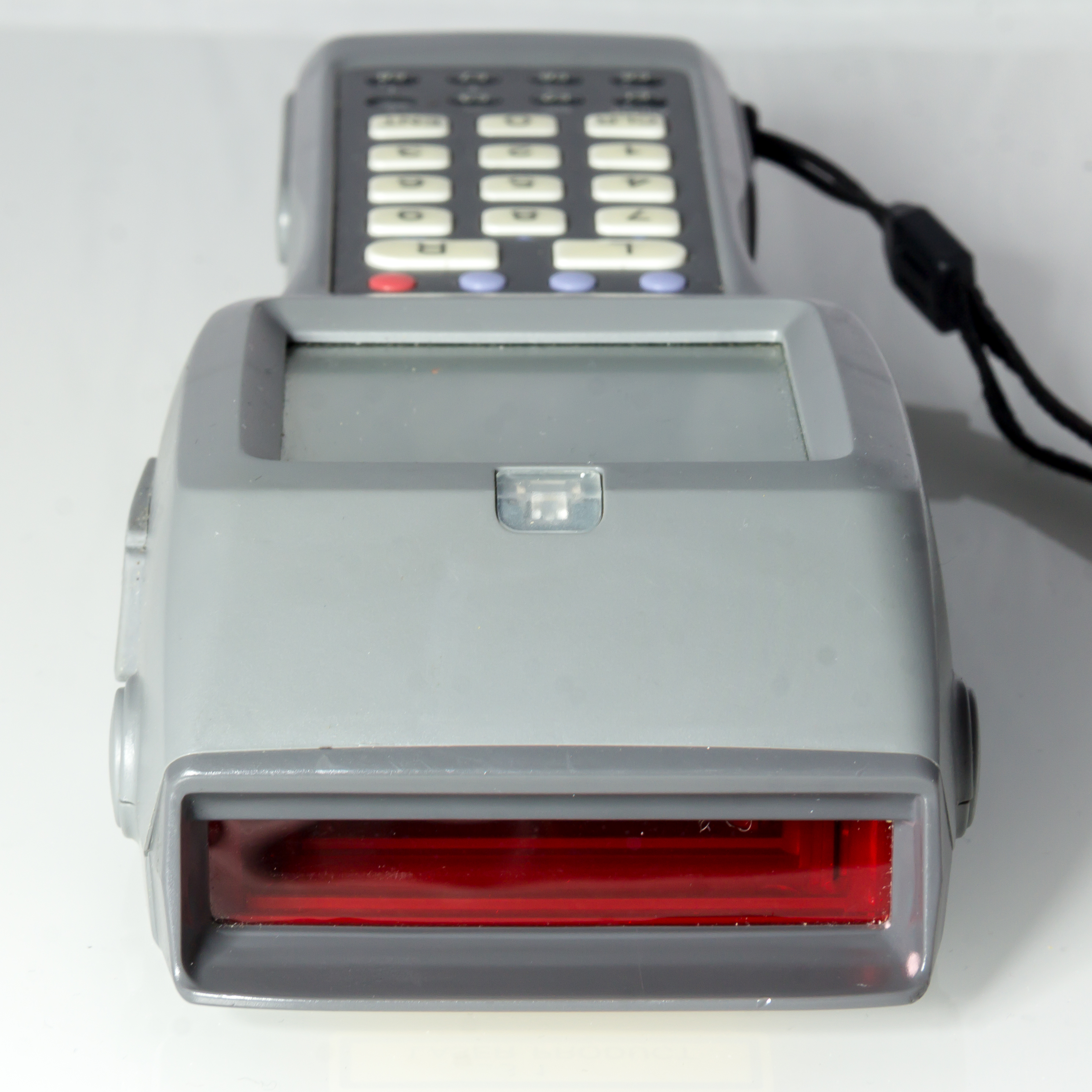
The entire piece of hardware you need. Barcode scanner: Raimond Spekking / Wikimedia Commons, CC BY-SA 4.0.

Here’s the secret the inventory-software companies would rather you not internalize before their free trial ends:
A USB barcode scanner is just a keyboard.
That’s it. That’s the trick. When you scan a barcode, the scanner “types” the digits — exactly as if you’d hammered them in by hand — and then presses Enter for you. No driver. No app. No API. No monthly fee. The industry term is a “keyboard wedge,” and once you get it, the entire mystique of “barcode inventory systems” collapses into something you can build in an afternoon for the price of lunch (Bricks).
I know this because we set this exact system up for small businesses all the time — hundreds of SKUs, one spreadsheet, one cheap scanner, no monthly fee. Let me show you the whole build, and then — unlike every SaaS “tutorial” you’ll find — I’ll tell you exactly when to stop doing it this way.
What you actually need
- A barcode scanner. A wired USB one is ~$30 and the simplest possible thing. More on the specific picks below.
- A spreadsheet. Google Sheets (free) or Excel. Either works.
- Twenty minutes. Genuinely.
That’s the entire bill of materials. If a tutorial tells you that you need their platform on top of this, you’re reading an ad.
Step 1: The 60-second test that proves it
Before you build anything, do this — it’s the moment it clicks.
Plug the scanner into a USB port. Open a plain text editor — Notepad, TextEdit, whatever. Click into it. Now scan any barcode lying around your house: a cereal box, a paperback, a shampoo bottle.
The number appears. The cursor jumps to the next line.
That’s the scanner pressing Enter. You just confirmed there’s no software involved — it’s typing into a text file. If it works in Notepad, it works in anything that takes typed input, which means it works in your spreadsheet (Google support).
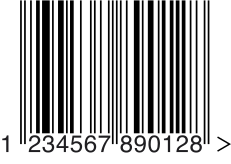 Scan one of these and the scanner just… types it. Example barcode: Fred the Oyster / Wikimedia Commons, public domain.
Step 2: Build the sheet
Open a new Google Sheet. Make five columns:
| A: SKU / Barcode | B: Item name | C: In stock | D: Added | E: Removed |
|---|
That’s your skeleton. The barcode number goes in column A — scanned, never typed.
Here’s the one upgrade that makes scanning fast: most scanners can be set to press Tab instead of Enter after each scan. You change it by scanning a configuration barcode printed in the scanner’s manual (Bricks). With Tab mode on, the cursor moves sideways across your row instead of dropping down — so you can scan the SKU into A, tab to C, type the quantity, and you’re instantly lined up for the next item. For receiving a shipment, that rhythm is everything.
Step 3: Scan to add, scan to remove
The simplest working system is two tabs in the same file:
- A “Receiving” tab — every time stock comes in, you scan it. SKU, name, quantity.
- A “Sold/Out” tab — every time something leaves, you scan it there.
Then your master list uses a formula to do the math. In your main inventory tab, “in stock” is just everything received minus everything removed. A SUMIF against the SKU does it:
=SUMIF(Receiving!A:A, A2, Receiving!C:C) - SUMIF('Sold/Out'!A:A, A2, 'Sold/Out'!C:C)Scan an item out, the number drops. Scan a shipment in, it climbs. You now have a live inventory count that updates at the speed of beep. This is the same register / check-in / check-out logic the dedicated tools use — you’ve just built it for free (Sheetgo, Smartsheet).
Step 4: The one piece of polish that earns its keep
Add a conditional format on your “in stock” column: highlight the cell red when it drops below, say, 3.
Now your spreadsheet tells you what’s running low instead of you remembering to check. That single rule is the difference between “a list” and “a system.” It’s the feature people pay monthly for, and it’s a thirty-second setting.
The scanners worth buying
You do not need a fancy one. Here’s the honest tier list:
The $30 pick — wired, plug-and-play. A basic 1D USB scanner like the Tera 3106-2 is all most people need. Corded means nothing to charge, and it reads every standard retail barcode (UPC). This is the one in the title, and it’s the one I’d start with.
The 2D / QR upgrade (~$40). If you want to print and scan your own QR labels — say, for one-off or secondhand items that don’t carry a retail barcode — get a 2D scanner like the Tera D5100Y. It also reads codes straight off a phone screen.
The wireless upgrade (~$40). If you’re scanning shelves across a room rather than items at a desk, a cordless model like the NADAMOO wireless scanner frees you from the cable and stores scans offline until you’re back in range.
Start wired. Upgrade only when a real annoyance tells you to.
When to quit the spreadsheet (the part nobody tells you)
I’m not going to pretend this scales forever, because that’s the lie that keeps people limping along on a broken file for two years. The spreadsheet is genuinely great — until it hits one of these three walls:
- Two locations. The moment stock lives in more than one place — a garage and a booth, a house and a storage unit — a single spreadsheet starts lying to you. Two people editing it, two versions of the truth.
- Multi-channel selling. When the same item is listed on eBay and Etsy and a website, the spreadsheet can’t decrement itself when something sells on a channel. You oversell, you refund, you apologize. That’s not a spreadsheet problem you can format your way out of.
- When humans start fighting the file. When someone fat-fingers a formula, or you’re afraid to let an employee touch it, the spreadsheet has stopped being a tool and started being a liability.
Those three are the signal that you’ve outgrown the afternoon build — and they’re exactly the problems a small, purpose-built inventory app solves: real multi-user access, automatic multi-channel sync, alerts that fire on their own. That’s the kind of system we build at Ctrl Alt Orion when a spreadsheet stops keeping up.
But not yet. Not today.
The payoff
Today, you can plug in a $30 keyboard-that-reads-barcodes, build five columns and two formulas, and walk away with a real inventory system that cost less than dinner. Most businesses your size don’t need more than that for a good long while.
Build the cheap thing first. Make it earn the upgrade. The scanner’s already beeping — go count something.
Sources
- Bricks — How to Use a Barcode Scanner with Google Sheets — the “keyboard wedge” mechanic; Tab-vs-Enter trick.
- Sheetgo — Inventory system with barcode scanner in Google Sheets — register / check-in / check-out flow.
- Smartsheet — How to Set Up & Use a Barcode Inventory System — neutral overview of barcode inventory workflows.
- bpwebs — Inventory to Google Sheets with QR/barcode scanning — phone-camera-as-scanner alternative.
- Google Docs Editors Community — Setup barcode scanner with Google Spreadsheet — confirms plug-and-play behavior.
Image credits: barcode scanner — Raimond Spekking / Wikimedia Commons, CC BY-SA 4.0. Example barcode — Fred the Oyster / Wikimedia Commons, public domain. Data-flow diagram and sheet screenshot are original assets. Product images via Amazon SiteStripe at publish.